
To build a Browser Use agent in Python, give Agent a model, a fresh Browser, and a task with an answer you can check. This example asks the agent to read a heading and a reference code from a local HTML page. Pydantic checks the shape of the answer. Your program checks the two values against the page you wrote.
A GitHub issue about action validation shows how an older Browser Use run could fail before producing a useful answer. A model has to express a browser action in the format the library expects before it can return your two fields. The example below follows the current Python quickstart and output format guide. It has been reviewed against those docs and is untested end to end.
Key takeaways
Use the Browser Use Python library when your application needs to own the browser session, the task, and the checks on the result.
Start with a local HTML file and a browser session that has no signed-in accounts.
A local browser and a local model are separate choices.
ChatBrowserUsecalls a hosted model even when Chromium runs on your machine.Compare the values to independent evidence.
history.is_successful()reports the agent's own assessment.Keep the first task free of side effects. Use a fixture with no form, upload, or account.
Choose where the browser and model run
The model decides which actions to request. The browser opens the page and runs those actions. Your Python program connects the two. This separation is useful when comparing a browser agent with fixed Playwright steps or deciding whether web search is enough.
| Setup | Where the browser runs | When to choose it |
|---|---|---|
| Python library + local browser | On the machine running your script | You want to read a loopback fixture and own the checks in Python |
| Python library + remote browser | In a remote session your script can reach | You need remote browser infrastructure and can make the target reachable from it |
| Browser Use Cloud hosted agent | In managed infrastructure | You want the hosted agent API and can give it a reachable target |
This walkthrough takes the first route. The model adapter still needs a key from Browser Use. Put BROWSER_USE_API_KEY in your environment or a local .env file as shown in the quickstart. Keep the key out of source control. Run these commands in a new project directory with uv installed.
uv init --python 3.12
uv add browser-use
uvx browser-use install
The quickstart installs Chromium for the browser session. Keep the lockfile if you plan to reproduce the setup later. The supported models guide documents other adapters, including ChatOllama. If you switch providers, rerun the same fixture and keep its expected values fixed. The adapter must support the action format as well as the final output. The Cloud quickstart has separate authentication and session setup.
A QA engineer's Reddit post asks for a self-hosted model to keep client data within their infrastructure. That constraint would rule out the hosted model used here. For this exercise, send only the synthetic fixture to the model.
Make a test page with a known answer
Save the following file as fixture/index.html. The reference code is synthetic. The page has no forms or credentials, and the HTTP server exposes only the fixture directory. Keep the server running in a separate terminal.
<!doctype html>
<html lang="en">
<meta charset="utf-8">
<title>Inventory fixture</title>
<main>
  <h1>Inventory Check</h1>
  <p>Reference code: BU-741</p>
</main>
</html>
uv run python -m http.server 8765 --bind 127.0.0.1 --directory fixtureThe address is relative to the browser's machine. A remote Chromium session opening 127.0.0.1 will look at its own loopback address. For this walkthrough, keep the browser local and open the URL manually first if you need to confirm the server is listening.
Run the agent and check the two fields
Save the code as check_page.py at the project root. The browser parameters describe the navigation allowlist, and the Agent parameters describe the schema option. The URL goes in the task, while the expected strings stay in the verifier. That keeps the expected answer out of the instruction the model receives.
import asyncio
from tempfile import TemporaryDirectory

from browser_use import Agent, Browser, ChatBrowserUse
from pydantic import BaseModel

URL = "http://127.0.0.1:8765/"


class PageCheck(BaseModel):
    heading: str
    reference: str


async def main():
    with TemporaryDirectory(prefix="browser-use-fixture-") as profile:
        browser = Browser(
            headless=True,
            user_data_dir=profile,
            allowed_domains=["127.0.0.1"],
            accept_downloads=False,
        )
        try:
            agent = Agent(
                task=(
                    f"Open {URL} and read its visible heading and reference code. "
                    "Return only those two values. Do not interact with any form."
                ),
                browser=browser,
                llm=ChatBrowserUse(),
                output_model_schema=PageCheck,
            )
            history = await agent.run(max_steps=5)
            result = history.structured_output
            expected = PageCheck(heading="Inventory Check", reference="BU-741")
            if result != expected:
                raise RuntimeError("The output does not match the fixture.")
            print(result.model_dump_json())
        finally:
            await browser.stop()


if __name__ == "__main__":
    asyncio.run(main())
uv run python check_page.pyA successful print would contain the heading Inventory Check and reference BU-741. Those are the fixture's expected values. If the script raises the mismatch error, inspect the history before raising the step limit. A longer run can simply repeat a failed action.
Check the page visit, output, and side effects separately
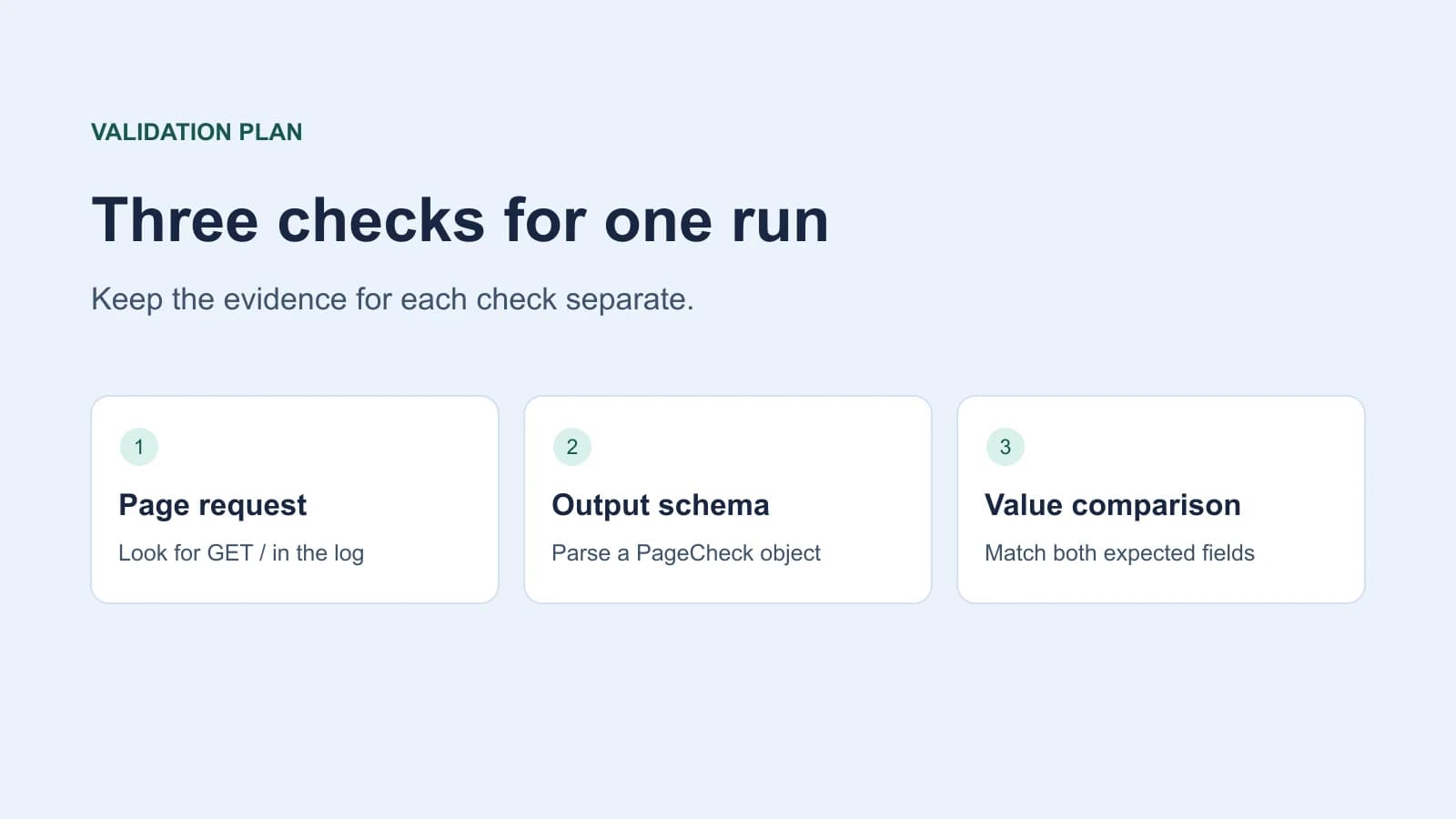
Start with the fixture server log. Look for a request for / during the agent run. Then check history.urls() and history.errors() alongside the terminal output. A recorded URL and a valid object answer different questions. The output format guide distinguishes completion and agent-reported success from a verified result.
Keep the test browser separate from your daily profile. Connecting to an existing browser changes which sessions and cookies the agent can reach. Treat a domain allowlist as a navigation rule. If the task moves to a real system, use a test account with read permissions and enforce restrictions on the server. See the browser agent security guide for the risks that come with page instructions and write access.
Diagnose the first failing stage
| What you observe | Where to look first | Next check |
|---|---|---|
| Browser starts but the fixture gets no request | Browser location, loopback address, port, navigation rules | Open the fixture from the same environment that runs Chromium |
| The provider rejects the request | Key, endpoint, adapter, model access | Check the provider error before changing browser settings |
| History records action validation errors | Model adapter and Browser Use version | Run the same task with a documented adapter |
| Output parses but a value differs | What the browser saw and what the model copied | Compare each field to the HTML and request log |
A remote CDP issue describes a session hanging on browser protocol calls. That report concerns a different failure stage from action parsing, and both reports describe particular versions. Use the error from your own run to decide where to start.
When a task can create records or send messages, treat a timeout as an unknown outcome. Check the destination before retrying. For a read-only fixture, you can repeat the request and inspect the log without changing account data.
When to keep this in Python
Keep Browser Use in Python when a job needs typed fields that your program can check and consume. A fixed browser script fits better when the URL and selectors are already stable and the task has an exact sequence. For a one-off inspection of the fixture, opening the tab and comparing the visible text is enough. The Tabbit and Browser Use comparison and the guide to agentic browsers explain the difference between a browser interface and a Python integration.
For a first run, stop when the fixture is reachable and both fields match. If you change the browser, provider, or target later, change one at a time and run the same checks again.

FAQ
Do I need a Browser Use API key to use the Python library?
The ChatBrowserUse adapter in this example needs a Browser Use API key. Other documented adapters have their own configuration, and a local Ollama server can run without that key.
Can Browser Use run with a local Ollama model?
Yes. The supported models guide documents ChatOllama, but check that your specific model can produce both browser actions and the requested final schema.
How do I make the first task read-only?
Serve a local fixture with no write endpoints or account access. Keep the browser profile separate and enforce permissions on the server if you later use a real application.
Why does the remote browser fail to reach localhost?
The loopback address points to the remote browser host. Run the fixture and browser on the same machine for this tutorial, or provide a separately reachable test endpoint.
What does history.is_successful() tell me?
It reports the agent's assessment of its run. Check the destination and returned values independently before treating the task as complete.
What should I check if structured_output is empty?
Read the agent history for navigation, provider, and action errors. Confirm that the run reached completion with output_model_schema set before changing the schema or step limit.