
Finding out that your daily browser has been abandoned or put into maintenance mode is an unpleasant shock. You spent months configuring custom spaces, fine-tuning pinned sidebars, and memorizing keyboard shortcuts. When the team behind it announces a pivot or stops shipping feature updates, you are left with a difficult choice: keep using a frozen app, or rebuild your daily habits from scratch.
This is not a theoretical concern. In the official Moving Out Megathread on r/ArcBrowser, the community moderator captured the mood bluntly: "A lot of people have been asking about other browsers to try now that Arc isn’t getting new features... We get it; the vibes have shifted, and almost everyone’s looking for their next daily driver."
When a browser enters maintenance mode, the immediate instinct is either denial or panic. You do not need to delete the app today. However, you cannot ignore it indefinitely. Between unpatched Chromium vulnerabilities, broken DRM certificates, and shifting extension APIs, an abandoned browser degrades quietly until something important breaks.
This guide gives you an orderly, step-by-step triage plan. We will show you how to evaluate your current risk level, extract your trapped data in ten minutes, evaluate active alternatives without losing your layout habits, and use Tabbit Browser to upgrade to an AI-native workflow.
Key takeaways
Distinguish maintenance mode from abandonment: A browser receiving regular Chromium engine patches is safe for a few months, but a completely discontinued engine poses immediate security risks.
Extract your data before APIs decay: Export your bookmarks to HTML and passwords to an independent password manager before custom sync servers or proprietary formats become inaccessible.
Pinpoint what you actually need: Separate interface preferences (vertical tabs, workspaces) from architectural needs (Chrome extension support, automated AI workflows).
Run a 5-day dual-track transition: Never switch cold-turkey. Run your old browser side-by-side with your candidate replacement until your daily muscle memory transfers.
Tabbit provides a modern upgrade path: If you rely on vertical tabs, separated project spaces, and need autonomous AI research, Tabbit gives you active development with zero migration friction.
Abandoned browser risks and triage at a glance
| Phase / State | What is happening | Real-world risk | Immediate action | What NOT to do |
|---|---|---|---|---|
| Maintenance Mode (Engine Patched) | Vendor stopped feature work; monthly Chromium/Gecko updates still land | Low in month 1–3; lingering UI bugs never get resolved | Backup bookmarks to HTML; research candidate browsers | Panic and wipe your profile immediately |
| Engine Drift (Updates Lagging) | Chromium version is 2+ major releases behind current stable | Medium; modern web standards, WebGPU, and extensions start breaking | Export passwords to CSV; test backup browser data | Assume nothing has changed because the app opens |
| Complete Abandonment (Frozen/Offline) | Zero security updates; sync servers shutting down | High; known CVE zero-days, unpatched sandbox escapes | Full data extraction; switch daily driver immediately | Log into online banking or sensitive enterprise tools |
| Extension Breakage (Manifest V2/V3) | Web Store deprecates APIs; extensions stop loading | Operational; ad blockers, password managers fail | Audit extensions; check Manifest V2 vs V3 migration | Install unverified third-party patch scripts |
If you are already noticing tab clutter and sync glitches during your daily browsing, review our guides on why browser sync fails and how to organize too many tabs.
The 3 real risks of running a frozen browser
Many users believe that as long as a browser window renders HTML, it remains perfectly fine to use. Software decay in modern web browsers happens on three distinct layers.
1. Chromium security patches and CVE lag
Web browsers are complex operating environments exposed directly to untrusted internet code. Modern engines like Chromium and Gecko release weekly security fixes and emergency patches for critical memory safety bugs.
When a development team moves on, keeping up with Chromium rebases becomes an unsustainable chore. An unpatched browser creates an open door for drive-by exploits. In the Reddit community discussion, user justreadingthat highlighted this priority: "I didn't need more features, I just needed them to fix the basic broken shit and not be insecure."
When a browser falls behind Chromium upstream releases:
Known vulnerabilities published in the National Vulnerability Database (NVD) remain unpatched on your machine.
Malicious advertising networks can exploit sandbox escape flaws without user interaction.
DRM modules (like Widevine) expire, preventing playback on video streaming platforms.
2. Web standards and extension API drift
The modern web is not static. Standards for CSS, JavaScript runtimes, Passkey authentication, and WebAssembly evolve monthly.
Furthermore, the Chrome Web Store has systematically shifted from Manifest V2 to Manifest V3. When extension developers update their code for modern Chrome, older browser forks that lack recent extension runtime APIs begin throwing runtime exceptions. Ad blockers, password autofill tools, and developer utilities stop working silently.
3. Data entrapment and proprietary sync shutdown
Innovative browsers often introduce proprietary ways of organizing your browsing life: custom folders, pinned spaces, canvas whiteboards, and cloud tab syncing.
The danger is that these structures are frequently stored in proprietary cloud databases or internal SQLite schemas. If the company turns off the sync infrastructure or goes out of business, your pinned project tabs, saved notes, and categorized spaces can vanish overnight. Rescuing that data while the app is still functional is critical.
Step-by-step triage: rescue your data in 10 minutes
Do not wait for a catastrophic crash or server shutdown. Follow this 4-step data rescue routine.
[Step 1: Export Bookmarks] -> [Step 2: Backup Passwords] -> [Step 3: Audit Open Sessions] -> [Step 4: Extension Inventory]Step 1: Export bookmarks to standard HTML
Every major browser retains a standard bookmark export function, even if it is tucked away behind multiple menus:
Open your browser's Bookmark Manager (
Ctrl+Shift+Oon Windows,Cmd+Option+Bon macOS).Look for the three dots or Settings gear icon in the top right corner.
Select Export Bookmarks and save the
.htmlfile to a secure local folder.For sidebar/spaces users: If your browser groups tabs into "Spaces", right-click each Space or folder and look for an option to "Save as Bookmarks Folder" before running the HTML export.
Step 2: Export passwords to CSV or a dedicated manager
If you rely on your browser's built-in password store:
Navigate to the password settings page (e.g.,
chrome://password-manager/settingsor equivalent).Select Export passwords and confirm your OS system password.
Save the CSV file and immediately import it into an independent, encrypted password manager (such as 1Password, Bitwarden, or Apple Keychain).
Delete the unencrypted plaintext CSV file from your disk once imported.
Step 3: Audit active project sessions and pinned tabs
Do not try to migrate 200 open tabs by hand. Use the triage rule:
Close expired tabs that you have not clicked in 7 days.
For active research projects, copy all URLs into a text document or markdown file, or use an AI tab manager to group them.
If you use isolated profiles for work and personal browsing, review browser profiles vs workspaces to decide how you want to separate accounts in your next browser.
Step 4: Catalog essential extensions
Open your extensions list (chrome://extensions) and take a screenshot or note down the top 5 extensions you cannot work without. Check whether they are available on the standard Chrome Web Store or require specific browser integrations.
How to choose your next daily driver
Migrating from an innovative, niche browser back to a generic browser can feel like a massive downgrade. Power users rarely want to return to a horizontal row of cramped, unreadable tabs.
In the migration discussions, user shawn789 pointed out a very common pain point: "All I want is a Chromium-based browser where I can switch profiles in the same window. Is that too much to ask?"
To make the right choice, match your next tool against your actual daily workflow rather than marketing hype.
Browser replacement comparison
| Browser | Core strength | Tab & space organization | AI & Automation | Trade-off / Limitation | Best for |
|---|---|---|---|---|---|
| Tabbit Browser | AI-native workflow & autonomous agents | Built-in vertical sidebar, smart workspace grouping | Multi-model chat (Claude, GPT, Gemini), Omnibox @ context, autonomous Agent Mode | Desktop-first (macOS & Windows); focused on productivity | Power users, researchers, creators wanting modern AI productivity |
| Zen Browser | Open-source Firefox fork | Vertical tabs, workspace containers, customizable UI | None built-in (extension reliant) | Slower video DRM setup; lacks Chromium extension library | Minimalists and open-source privacy purists |
| Vivaldi | Extreme customization | Tab stacks, two-level vertical bars, split view | Basic built-in translation and panel tools | Heavy interface complexity; steep learning curve | Tinkerers who want granular control over every button |
| Microsoft Edge | Enterprise stability | Native vertical tabs, basic tab groups, sync | Copilot sidebar | Aggressive Microsoft service promotions and telemetry | Corporate environments requiring strict IT compliance |
| Stock Chrome | Universal web compatibility | Horizontal tab groups | Search-based AI summaries | No native vertical sidebar; high memory footprint | Users wanting zero friction and maximum compatibility |
For a broader evaluation of modern tools, explore our comprehensive AI browser comparison and Arc browser alternatives review.
A practical option: Tabbit Browser
If you loved the modern feel of custom spaces and vertical tabs, but felt let down by sluggish updates and lack of real automation, Tabbit Browser was built specifically to bridge this gap.
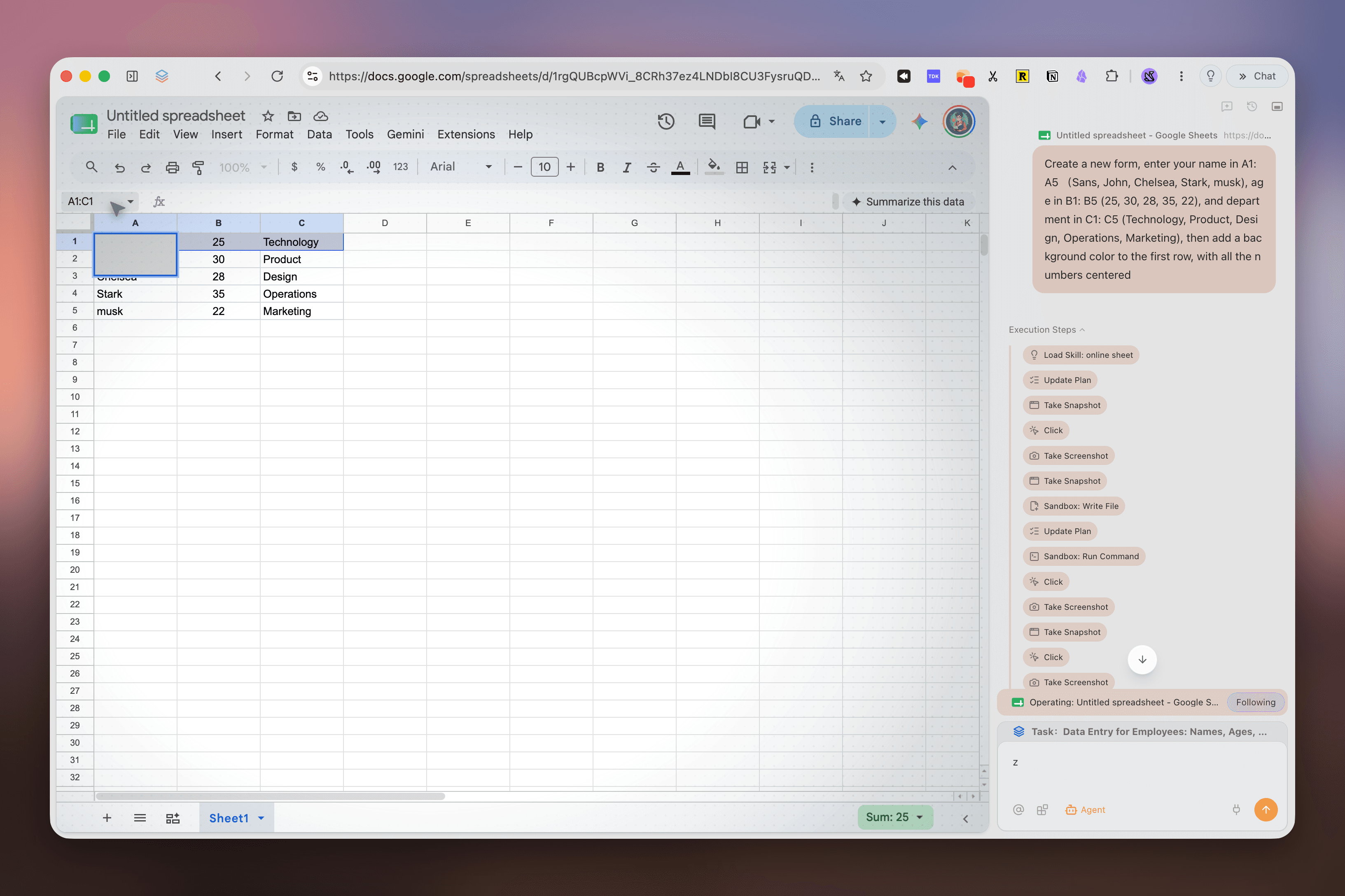
1. Seamless workspace and vertical tab layout
Tabbit eliminates horizontal tab crowding with a built-in, expandable vertical sidebar. You can create distinct workspaces for client projects, coding research, and personal reading.
Unlike legacy browsers where workspaces require separate OS windows, Tabbit lets you switch spaces within a single window while keeping sessions neatly organized. If you are comparing layout ergonomics, see our analysis on whether vertical tabs are better and browsers with workspaces like Arc.
2. Omnibox with @ cross-tab intelligence
Traditional browsers force you to copy and paste text back and forth into web chatbots. In Tabbit, the Omnibox turns your entire session into live context:
Type
@in the search bar to reference any open tab, tab group, screenshot, or local PDF.Ask questions like: "Compare the pricing tables across these three competitor tabs."
Tabbit synthesizes information across your active workspace without switching windows.
3. Agent Mode: real task execution
While other browsers stopped at simple text summarization, Tabbit features an autonomous Agent Mode powered by state-of-the-art reasoning models.
You can assign complex multi-step instructions—such as scraping data from a directory, filling out repetitive forms, or performing comprehensive market research. The Agent runs in an isolated background tab group, allowing you to continue reading or writing undisturbed. Learn more about how this works in our guide to agentic browsing workflows.
[User Prompt in Omnibox]
       │
       ▼
[Agent Mode spawns parallel tab group]
       │
       ├── Reads target documentation
       ├── Extracts structured tables
       └── Formats final brief into your workspace
4. Zero migration friction
Switching to Tabbit takes under two minutes. Upon first launch, the built-in migration wizard lets you import:
Bookmarks and folder hierarchies from Chrome, Edge, Safari, or HTML exports.
Passwords and autofill records.
Chrome Web Store extensions directly.
Tabbit is fully free, supports both macOS and Windows, and requires no waitlists or invite codes.
The 5-day dual-track migration workflow
Do not delete your old browser immediately. A gradual 5-day transition eliminates friction and prevents lost data.
Day 1: Triage & Export ──▶ Day 2: Dual Setup ──▶ Day 3–4: Daily Work ──▶ Day 5: Final CutoverDay 1 (Export & Triage): Export your HTML bookmarks and CSV passwords as detailed above. Install Tabbit on your desktop.
Day 2 (Environment Setup): Import your bookmarks into Tabbit. Recreate your 2–3 primary project spaces in the vertical sidebar. Install your essential extensions from the Chrome Web Store.
Day 3 (Shadow Browsing): Use Tabbit for morning email, article reading, and general research. Keep your old browser open only for legacy pinned tasks.
Day 4 (Workflow Testing): Test multi-tab research using
@context and run a test task with Agent Mode. Verify all web logins and credentials work smoothly.Day 5 (Default Browser Cutover): Set Tabbit as your default operating system browser. Archive your old browser’s profile folder and enjoy an actively maintained, AI-powered workflow.
Final verdict and next steps
A browser entering maintenance mode is not a crisis—it is an opportunity to eliminate outdated digital clutter and upgrade your daily productivity toolkit. Sticking with an abandoned browser leaves you exposed to unpatched security vulnerabilities and decaying web standards.
Take ten minutes right now to export your bookmarks and passwords. Then test an actively maintained, AI-native workspace that respects your need for vertical tab organization, multi-tab context, and real automation.
Download Tabbit Browser today on macOS or Windows and experience how an AI-native browser transforms your web workflow.

FAQ
Is it dangerous to keep using a browser after feature updates stop?
It is safe for a short grace period if the vendor still releases monthly Chromium security patches. It becomes dangerous when engine updates cease entirely, because public Chromium CVE vulnerabilities remain unpatched in your browser while attackers actively exploit them.
How do I export pinned tabs and spaces from custom sidebar browsers?
Modern niche browsers store spaces in internal SQLite or JSON files. Before uninstalling, right-click pinned tabs or folders to convert them into standard bookmark folders, then trigger a standard HTML bookmark export from the settings menu.
Will my Chrome extensions stop working on an abandoned browser?
Yes, over time. As Google Chrome and the Chrome Web Store enforce Manifest V3 updates and retire older APIs, extensions updated by developers will fail to run or update on an outdated browser engine.
What is the difference between a maintenance-mode browser and an active AI browser?
A maintenance-mode browser only receives emergency bug fixes without adapting to new web standards or AI workflows. An active AI browser integrates multi-model reasoning, cross-tab context understanding, and automated task execution directly into your browsing flow.
Can I run my old browser and a new browser side-by-side during migration?
Yes. A dual-track transition of 3 to 7 days is recommended. Keep your old browser for reference while importing logins, bookmarks, and daily project tabs into your new browser to ensure zero workflow disruption.
How does Tabbit Browser handle data import from other browsers?
Tabbit offers a direct one-click import engine that pulls bookmarks, browsing history, cookies, and extensions from Chrome, Edge, or standard exported HTML and CSV files without requiring manual file conversions.