
Chrome can feel slow even when the browser itself is not the bottleneck. A busy page, extension, remote server, network route, or overloaded computer can produce the same delay. A Reddit search result put the network side plainly: “you are dependent on the remote site serving the data and what network connectivity they have.” A YouTube result framed another common mistake as “It's NOT your RAM.” Neither is a benchmark for your machine, but both point to the same first move: test the symptom before changing settings.
This guide keeps the fix inside Chrome. You will use built-in controls, one change at a time, and a clear rollback path. Tabbit Browser appears later as an option for the separate problem of handling many research pages. It is not a Chrome repair utility.
Key takeaways
Reproduce the delay with the same page and task, then note whether the problem is one site, all sites, startup, video, or downloads.
Update Chrome and inspect Chrome Task Manager before clearing data.
Review Memory Saver, Energy Saver, and Preload Pages only after identifying the symptom.
Clear site data selectively. Cookies can sign you out, and a full cache clear is not a universal speed fix.
Test one nonessential extension at a time, and avoid “speed booster” extensions and unverified flags.
Chrome speed fixes at a glance
| Symptom | First check | Built-in action | Rollback or boundary |
|---|---|---|---|
| One page lags | Another site and a private window | Check page state and extensions | The server or app may be slow |
| Chrome window freezes | Chrome Task Manager and OS monitor | Find the process rising during the freeze | A browser toggle cannot fix device load |
| Tabs reload | Performance settings and tab activity | Review Memory Saver and exceptions | Save forms and live work first |
| Video flickers | Another video and graphics symptoms | Test hardware acceleration once | Restore the setting if playback worsens |
| Old or broken page assets | Site-specific data | Clear that site's data | You may need to sign in again |
| Every app is slow | CPU, memory pressure, disk, and network | Close background load or free disk space | Chrome may only be the visible symptom |
1. Create a baseline you can repeat
Pick one task that shows the problem: open the same page, wait for the same panel, or play the same video segment. Record what actually happens. “Chrome is slow” is too broad; “this page takes longer to become interactive” gives you something to compare.
Try the task on a second unrelated site. Then try a private window. If only one site is slow, do not reset your entire profile. If every browser is slow on the same network, investigate the connection or remote service before Chrome. This is also where our broader Chrome slowdown diagnosis is useful.
2. Update Chrome and close only what you can explain
Open Chrome's three-dot menu, choose Help > About Google Chrome, and relaunch when an update is ready. Google says Chrome normally updates in the background, but a browser that has stayed open for a long time can be waiting for that restart (Chrome update instructions). Save active work before restarting.
Close a tab or window only when you know its state is safe. A form, upload, call, music session, or remote console may be doing work even when it looks idle. If open-tab volume is the problem, use Chrome tab groups to separate finished research from live work before closing anything.
3. Find the process instead of guessing
Open More tools > Task manager. Sort by CPU or Memory footprint while the slowdown is happening. A page that rises with the symptom is a lead. So is an extension that becomes busy on every page. Close one suspect, repeat the same task, and reopen it once to confirm the result. Google documents the browser's tab and process controls in its Chrome tab help.
For a memory-heavy session, compare the result with why Chrome uses so much RAM. If inactive tabs are the concern, read Chrome Memory Saver troubleshooting. These are separate diagnoses; RAM usage and a high-CPU page are not interchangeable.
4. Review the built-in Performance settings
Chrome's Performance page includes Memory Saver, Energy Saver, tab memory use, site exceptions, and Preload Pages (Google's performance settings). Change only the control related to your symptom.
Memory Saver can deactivate eligible background tabs. It does not make active JavaScript cheaper, and returning to an inactive tab can reload it. Protect an unfinished form, upload, call, or live dashboard with a narrow exception. Energy Saver can change background activity and battery behavior, so compare it on the same task rather than assuming it is faster.
Preload Pages may make a frequently visited page open sooner by doing work before you click. That work uses network and storage. Leave the default if it suits your connection; turn it off only as a controlled test when background activity or data use is the problem.
5. Test extensions and graphics separately
You do not need a “speed booster” extension to diagnose Chrome. Visit chrome://extensions, switch off one nonessential extension, and repeat the baseline task. Do not disable password, security, or accessibility tools blindly. If Chrome reports malware, follow Google's unwanted software guidance and our guide to Chrome extension malware.
Hardware acceleration is a different question. Leave it on when video, scrolling, and web apps work normally. If you see flicker, black video, crashes, or a graphics-driver symptom, test it once, restart Chrome, and compare the same page. Our guide to hardware acceleration explains the trade-off, and turning it off in Chrome gives the narrow procedure. Restore the original setting if CPU use or playback gets worse.
6. Clear only data that matches the symptom
If one site shows stale assets, opens a broken session, or behaves differently after an update, clear that site's data first. Google's Delete browsing data guide separates cached files from cookies, history, and autofill.
Cache clearing makes the browser fetch files again. Cookies can sign you out. Record the account state before acting, and use how to clear Chrome's cache for the exact controls. If the page is simply slow because its server is busy, deleting local data will not change that.
A practical option: Tabbit Browser for research-heavy work
Sometimes the browser feels slow because the work is scattered: one tab holds the source, another holds notes, and a third chat receives copied text. Tabbit Browser can keep a page and an AI task panel in the same workspace. Its Smart Tab Organization can also help you sort a large session before deciding what to keep.
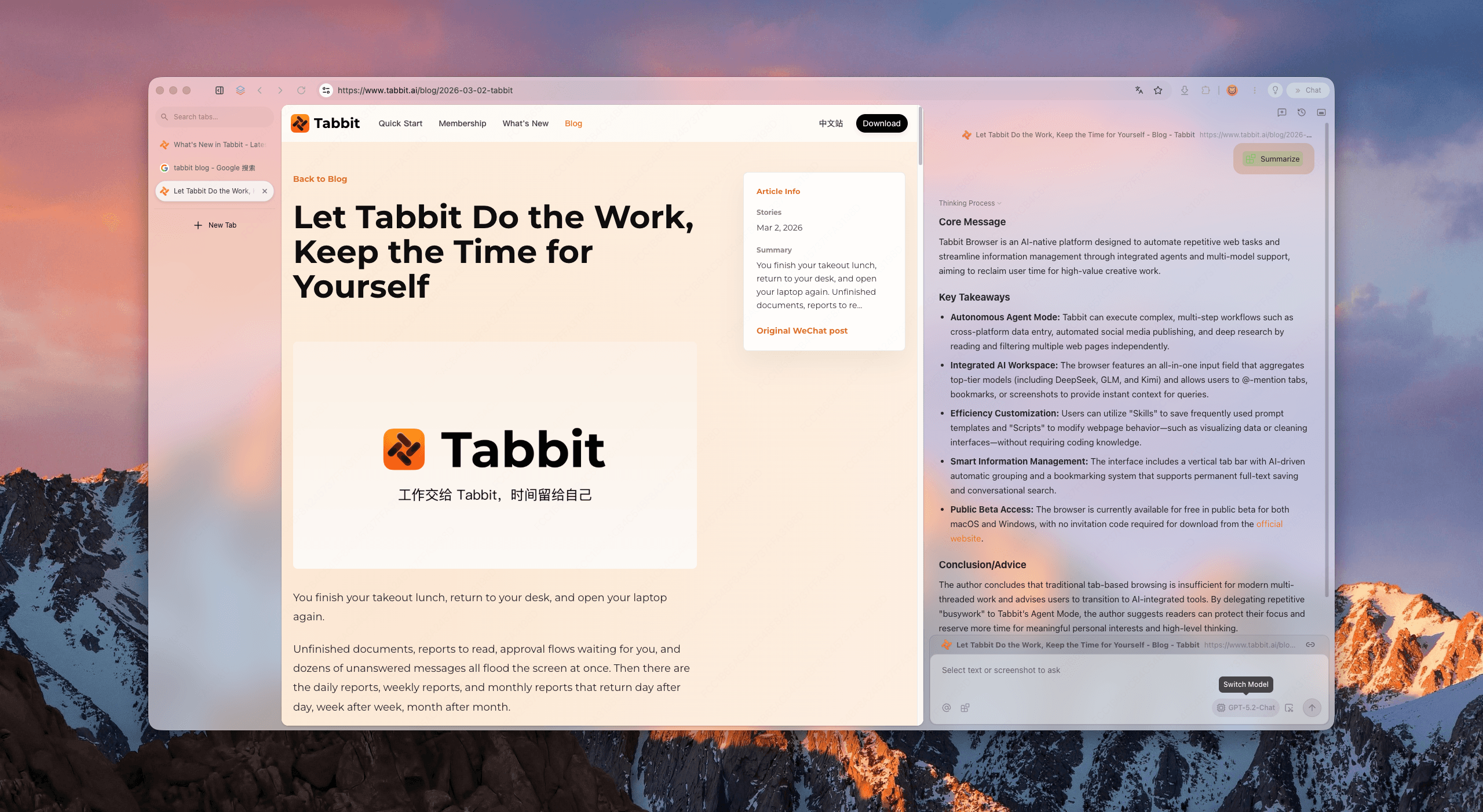
The useful boundary is simple. Tabbit can help gather and compare pages, but it cannot speed up a remote server, lower the CPU cost of a heavy video, or repair Chrome's profile. If the bottleneck is raw device load, use the lightweight browser guide only after measuring the workload. If the bottleneck is context switching, try one research task in Tabbit and judge the completed work, not an invented percentage.
Choose the next move by symptom
| Situation | Priority | Trade-off | Decision |
|---|---|---|---|
| One site is slow | Site/network test | The site may be busy | Keep Chrome settings unchanged until isolated |
| A tab or extension is busy | Task Manager, then one-at-a-time test | Closing it can lose transient state | Save work, test, then restore if needed |
| Background tabs cause pressure | Memory Saver and tab organization | Sleeping tabs reload | Protect live tasks with narrow exceptions |
| Video or rendering glitches | Hardware acceleration test | CPU and battery use may rise when off | Keep the mode with fewer real symptoms |
| Stale assets or broken session | Targeted site data clear | Cookies can sign you out | Clear the smallest category first |
| Research context is the pain | Separate workspace such as Tabbit | It does not repair Chrome | Try it for information handling only |
Final verdict
To make Chrome faster without extensions, start with a repeatable baseline. Update Chrome, inspect Task Manager, review the Performance setting tied to the symptom, test one extension or graphics change, and clear only matching site data. Check the device and network when the evidence points outside the browser. Undo a change that does not improve the same task.
Use Tabbit Browser when the work is collecting, reading, and comparing information across pages. It is a separate workflow choice, not a promise of lower Chrome CPU or RAM use.
Frequently asked questions
See the answers in the frontmatter FAQ for the short version. The links above provide the relevant Google documentation and narrower Tabbit guides.

FAQ
Can I make Chrome faster without installing an extension?
Yes. Start with Chrome's update, Task Manager, Performance settings, targeted data clearing, and device checks. These actions diagnose different causes, so no single toggle guarantees a speed increase.
Which Chrome setting should I change first?
Measure the symptom first, then update Chrome and inspect Task Manager. This keeps you from changing Memory Saver, preload, cache, and graphics settings before you know what is busy.
Does clearing Chrome cache make it faster?
It can help when one site's cached files are stale or damaged. It does not fix a slow server, high-CPU page, or overloaded device, and clearing cookies can sign you out.
Should I disable Chrome extensions to improve speed?
Test extensions one at a time in chrome://extensions. Disable only a nonessential extension, repeat the same task, and restore it if there is no clear difference.
Does Memory Saver speed up Chrome?
Memory Saver deactivates eligible inactive tabs so active work has more memory available. It does not reduce the CPU cost of an active page and may reload a tab when you return.
Is Tabbit a Chrome speed booster?
No. Tabbit Browser is a separate workspace for research and page context. It can reduce manual copying between pages, but it cannot repair Chrome, a website, a network, or a device.