
You open your system drive settings or run a disk utility after noticing your SSD running unusually low on free storage. To your surprise, your browser's profile directory is devouring 15 GB, 30 GB, or even 80 GB of drive space. Or worse: you open Firefox settings and are greeted by a surreal warning claiming that websites are currently using 17,179,869,184 GB of disk space, accompanied by random popups warning that Firefox has run out of storage.
The dilemma hits immediately. If you click the big red "Clear Data" button, Firefox deletes all your cookies across every website. You get abruptly kicked out of your email, project trackers, GitHub accounts, and banking portals, forcing you to undergo an agonizing round of two-factor authentication logins on dozens of tabs. But if you leave things as they are, the unchecked cache bloat triggers sluggish UI response, delays tab switching, and steadily eats away at your solid-state drive's lifespan.
This issue frustrates thousands of users every month. In a popular r/firefox discussion with over 1,000 upvotes, community members marveled at Firefox miscalculating disk usage into an absurd 17-billion-gigabyte integer overflow. In another thread on r/firefox, user Nemesisso reported discovering over 9 GB of site data bogging down their workstation to the point where Photoshop could no longer run smoothly. As system optimization teams at @WiseCleaner observed, modern browsers silently write massive chunks of offline state and background databases that turn everyday navigation into an SSD resource hog.
The good news is that you do not have to nuke your entire browsing history or sacrifice your active login sessions to fix this. By understanding the difference between simple HTTP cache, session cookies, and deep IndexedDB offline stores, you can perform surgical cleanups and enforce hard limits on Firefox's storage footprint. And if you are tired of legacy storage bugs and crave an agile browsing workspace with built-in AI tools, Tabbit Browser offers a clean Chromium architecture that keeps storage transparent and tab resources under control.
Key takeaways
"Cookies and Site Data" in Firefox bundles two vastly different things: tiny text cookies (a few kilobytes) and massive offline web databases like IndexedDB and Service Worker caches (often tens of gigabytes).
Heavy web apps—including Mega.nz, Spotify Web, YouTube, Discord, Telegram, and Figma—regularly store gigabytes of media chunks, WebAssembly blobs, and local database files in your profile's
storage/default/folder.The infamous "17,179,869,184 GB" error is a Quota Manager integer underflow (2^34 bytes / unsigned 64-bit glitch) caused by a corrupted
storage.sqlitedatabase, not actual files occupying petabytes of space.You can safely reclaim 90% or more of your wasted disk space through Firefox's "Manage Data" panel by sorting by storage size and removing only the heaviest domains without wiping your global login tokens.
Setting
browser.cache.disk.smart_size.enabledtofalseand cappingbrowser.cache.disk.capacityinabout:configprevents Firefox from dynamically inflating disk cache past your preferred threshold.
Firefox site data and disk space bloat at a glance
| Storage Category | Where it lives on disk | Why it balloons | Safe way to clean | What NOT to do |
|---|---|---|---|---|
| HTTP Web Cache | <profile>/cache2/entries/ | Uncapped automatic caching of web images, scripts, stylesheets, and streaming fragments | Clear "Cached Web Content" in Settings or via Ctrl+Shift+Del without selecting Cookies | Deleting the folder while Firefox is running |
| Site Data & IndexedDB | <profile>/storage/default/ | Heavy web apps caching audio/video blobs, offline documents, and client-side databases | Sort by "Storage" in Settings > Manage Data and delete specific offender domains | Clicking "Clear Data" with Cookies checked |
| Session Cookies | <profile>/cookies.sqlite | Authentication tokens, session IDs, and site preference flags (rarely exceeds 50 MB) | Keep intact for trusted sites; remove individual tracking cookies via site permissions | Deleting all cookies globally and losing 2FA sessions |
| Quota Manager Bug | <profile>/storage.sqlite | Database corruption or uninitialized quota underflow causing fake "17B GB" storage warnings | Close Firefox, rename/delete storage.sqlite and corrupted origin folders to regenerate | Formatting your hard drive or panicking over fake petabyte values |
| Session Recovery Writes | <profile>/sessionstore-backups/ | Firefox writing recovery.jsonlz4 state snapshots to disk every 15 seconds | Increase browser.sessionstore.interval in about:config to 60000 ms (1 minute) | Disabling session restore entirely if you need crash recovery |
Why Firefox site data eats so much disk space: IndexedDB, Cache2, and Quota Manager
To fix disk bloat without breaking your daily workflow, you need to understand what Firefox actually writes to your storage drive. When you browse the modern web, Firefox divides data into three separate buckets that behave very differently.
Firefox Profile Storage Hierarchy
├── cache2/                  <- HTTP Cache: images, CSS, JS, media chunks (~350MB - 1GB+)
├── cookies.sqlite           <- Session Tokens & Preferences (< 30MB)
├── storage/
│   ├── default/             <- Heavy Offline Web App Storage (IndexedDB, Service Workers, Blobs: 5GB - 50GB+)
│   │   ├── https+++mega.nz/
│   │   ├── https+++discord.com/
│   │   └── https+++www.youtube.com/
│   └── storage.sqlite       <- Quota Manager tracking DB (Bug: 17,179,869,184 GB underflow)
└── sessionstore-backups/    <- Continuous tab state snapshots (recovery.jsonlz4)
1. Cookies vs. Offline Site Storage: The crucial distinction
Many users assume that when Firefox reports "Cookies and Site Data: 12 GB", they have millions of tracking cookies. In reality, a standard authentication cookie contains just a few string tokens and metadata flags totaling barely 4 KB. Even with hundreds of active accounts, your entire cookies.sqlite file rarely exceeds 20 to 30 MB.
The real culprit behind multi-gigabyte bloat is Offline Site Storage. Modern Single Page Applications (SPAs) and Progressive Web Apps (PWAs) treat your browser like a local operating system:
Mega.nz and Cloud Storage: Decrypts downloaded files in browser memory and stages multi-gigabyte chunks into local IndexedDB before writing to your operating system's download folder. If a download is interrupted or canceled, those multi-gigabyte blob caches often remain trapped in
storage/default/indefinitely.YouTube and Video Platforms: As detailed in our analysis of Firefox YouTube 4K stuttering, streaming video platforms buffer video fragments, offline playback manifests, and WebAssembly decoders inside origin storage.
Discord, Slack, and Telegram Web: Locally cache weeks of chat history, user avatars, voice snippets, and shared media files to speed up search and channel switching.
Figma, Canva, and Photopea: Cache font libraries, project assets, canvas render layers, and undo buffers using the Cache Storage API and IndexedDB.
2. The HTTP Web Cache (cache2)
Located in your local application data folder (e.g., AppData\Local\Mozilla\Firefox\Profiles\... on Windows or ~/Library/Caches/Firefox/... on macOS), the cache2 directory stores downloaded images, scripts, fonts, and stylesheets.
By default, Firefox employs "Smart Sizing", dynamically scaling its disk cache based on your total available drive capacity. On modern 1 TB or 2 TB SSDs, this cache can easily swell past 1 GB. While HTTP cache generally purges old files automatically using an LRU (Least Recently Used) algorithm, orphaned fragments can linger and consume valuable space.
3. The 17-Billion-GB Quota Manager Bug
One of the most bewildering glitches in modern browser history is the message: "Websites are currently using 17,179,869,184 GB of disk space".
17,179,869,184 GB = 16 Exabytes = 2^34 Gigabytes
Binary representation: 0x400000000 bytes or 64-bit integer underflow (-1 / uninitialized quota)
This bug occurs when Firefox's Quota Manager database (storage.sqlite) suffers from an unclean shutdown, disk I/O interrupt, or permission mismatch. When Firefox attempts to calculate the total storage footprint across origins, a signed integer underflow or uninitialized quota variable defaults to a 64-bit boundary value (17.18 billion GB).
Because Firefox believes your disk is full to overflowing, it continuously interrupts your browsing with "Low Disk Space" warnings and blocks legitimate downloads, even when your physical hard drive has hundreds of gigabytes free.
Step-by-step: How to find large site data caches and clear them safely
Cleaning up your browser should never mean losing all your open work or having to re-authenticate across thirty different websites. Follow this systematic approach to isolate space hogs and safely purge unwanted data.
Step 1: Identify storage hogs using the "Manage Data" panel
Firefox provides a built-in inspector that breaks down exactly how much storage each domain is consuming.
Click the hamburger menu (three horizontal lines) in the top-right corner and select Settings (or type
about:preferences#privacyinto your address bar).Scroll down to the Cookies and Site Data section.
Click the Manage Data... button.
Click the column header titled Storage to sort all websites from largest to smallest.
You will immediately see which websites are responsible for the vast majority of your disk usage. It is common to find three or four websites taking up 80% to 90% of the entire footprint.
Step 2: Surgically delete heavy site data while preserving logins
Instead of clicking "Remove All", select only the domains that are hoarding excessive offline files:
Look for cloud storage downloaders (like
mega.nz), media sites (youtube.com,spotify.com), and social web apps (discord.com,reddit.com).Click on the domain name, then click Remove Selected.
Click Save Changes, then confirm the prompt.
Pro tip: When you delete a domain's entry in "Manage Data", you will be signed out of that specific website only. All your other active logins—your email, workspace dashboards, and developer portals—remain completely untouched.
Step 3: Clear the HTTP Web Cache without touching cookies
If your general web cache has grown bloated, purge it independently from your credentials:
Press
Ctrl + Shift + Delete(Windows/Linux) orCmd + Shift + Delete(macOS) to open the Clear Recent History dialog.Set the When time range to Everything.
In the checklist, check Cache (or "Temporary cached files and pages").
Uncheck Cookies, Active Logins, Browsing & Download History, and Site Settings.
Click Clear Now.
This immediately recovers several gigabytes of cache2/ disk space without logging you out of a single tab.
Step 4: Cap the disk cache capacity in about:config
To stop Firefox from quietly rebuilding a multi-gigabyte cache over the coming months, enforce a strict manual ceiling:
Type
about:configinto your address bar and press Enter. Click "Accept the Risk and Continue".Search for
browser.cache.disk.smart_size.enabled. Double-click it to toggle its value to false.Search for
browser.cache.disk.capacity.Double-click the integer value and enter your desired maximum cache size in kilobytes (KB):
For 500 MB: enter
512000For 1 GB: enter
1048576For 250 MB (tight storage on smaller SSDs): enter
256000
Click the blue checkmark to save the preference.
about:config Settings for Low-Footprint Storage:
-------------------------------------------------------------
browser.cache.disk.smart_size.enabled       = false
browser.cache.disk.capacity                 = 512000   (500 MB)
browser.sessionstore.interval               = 60000    (Write session every 60s)
Adjusting browser.sessionstore.interval from its default of 15000 (15 seconds) to 60000 (60 seconds) also reduces continuous SSD write cycles significantly, curbing background browser bloat and extending drive health.
Step 5: Fix corrupted storage and the 17-Billion-GB bug
If Firefox continues showing the 17B GB error or throwing storage warnings, your local Quota Manager index is corrupted. Here is how to rebuild it cleanly:
Completely close Firefox. Ensure no lingering
firefox.exeprocesses remain in your Task Manager or Activity Monitor.Open your operating system file explorer and navigate to your Firefox roaming profile folder:
Windows:
%APPDATA%\Mozilla\Firefox\Profiles\<your-profile-name>\macOS:
~/Library/Application Support/Firefox/Profiles/<your-profile-name>/Linux:
~/.mozilla/firefox/<your-profile-name>/
Locate the file named
storage.sqliteand rename it tostorage.sqlite.bak.Open the
storage/default/subfolder. Look for folders with unusual names, corrupted file sizes, or orphaned origin folders from sites you no longer use, and move them to trash.Restart Firefox. Firefox will automatically generate a fresh, uncorrupted
storage.sqlitedatabase and accurately recalculate your actual storage quota.
A cleaner workflow: Transparent storage, smart tab hibernation, and native AI with Tabbit
While tweaking about:config flags and manually cleaning profile folders helps keep Firefox running, it highlights an unavoidable reality: managing modern, memory-intensive web applications on legacy browser engines requires constant manual maintenance.
Between complex client-side databases, heavy media players, and tabs silently eating resources in the background, power users spend too much time diagnosing why browser memory spikes, why memory saver tools fail to reclaim RAM, or dealing with broken tab sleeping behaviors.
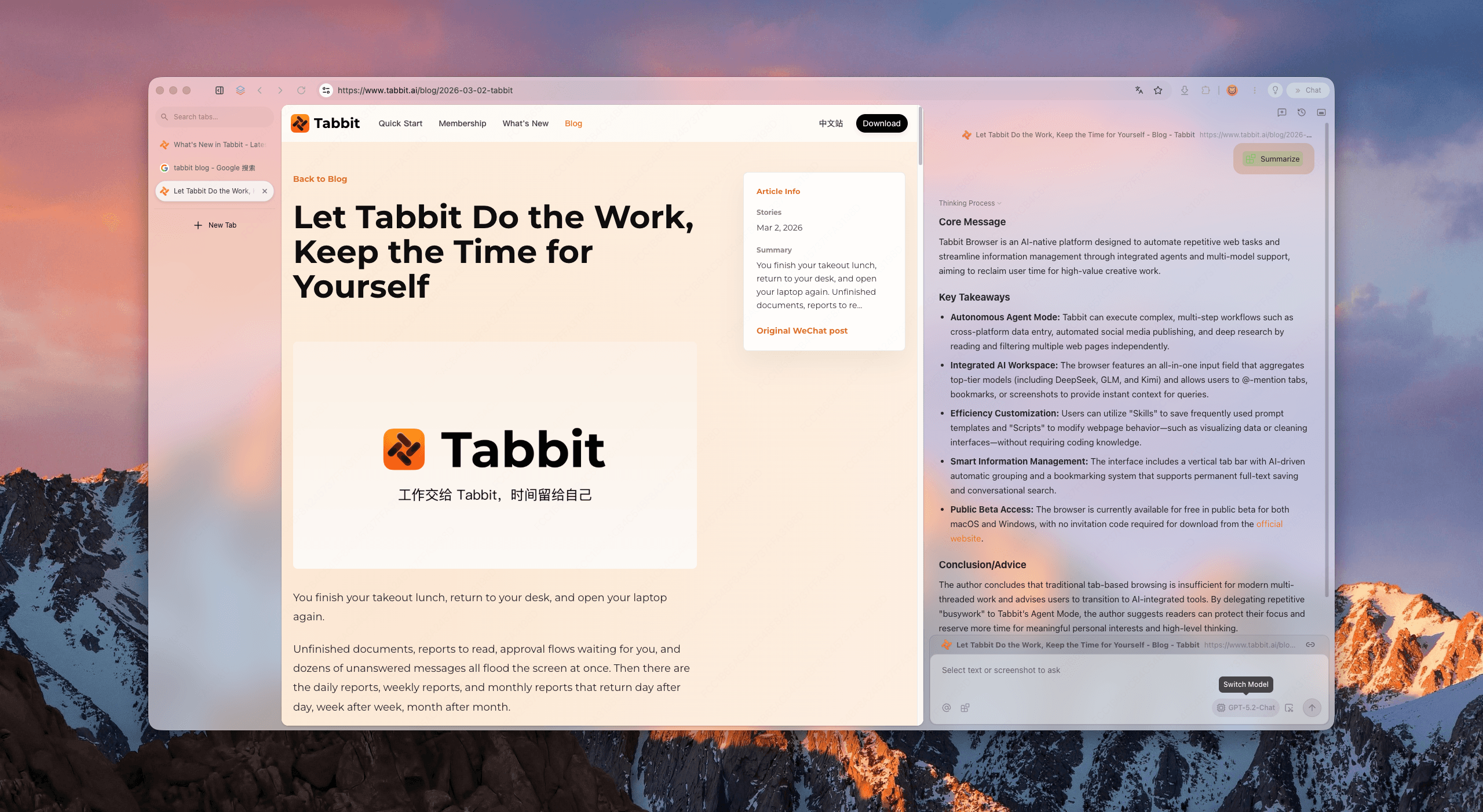
This is where Tabbit Browser offers a fundamentally more efficient approach. Designed from the ground up on modern Chromium, Tabbit eliminates the friction of silent disk bloat while empowering your daily research and productivity:
1. Process-isolated origin sandboxing and transparent storage
Unlike legacy architectures that tangle offline databases and Quota Manager state into monolithic SQLite files, Tabbit strictly sandboxes origin storage according to modern web platform standards. Cache lifecycles are monitored with crystal clarity. Temporary media buffers and WebAssembly data packets are reclaimed automatically when no longer needed, preventing gigabytes of orphaned files from lingering on your SSD.
2. Smart Tab Hibernation without session loss
If you tend to keep dozens of research tabs open across different projects, you know how quickly inactive pages can bog down your machine. Tabbit's intelligent tab hibernation suspends background tabs, flushing heavy DOM trees and video buffers from memory and disk cache. Crucially, your active session cookies, form progress, and login states remain 100% intact. When you click back into a suspended tab, it restores instantaneously without triggering a disruptive full-page reload or re-authentication challenge.
3. Native AI research that replaces heavy offline web app caches
Many modern web tools consume vast amounts of local storage simply because they run bulky WebAssembly models and client-side indexers directly in your browser. With Tabbit, you have native AI tools directly built into the browser interface:
Chat with Page: Ask complex questions, query tables, or extract key data points from 50-page technical PDFs or lengthy documentation without downloading external software.
Smart Summaries: Get instant bulleted takeaways and video timestamps for long lectures or tutorials without buffering entire media streams into local storage.
Multi-Tab Agent Mode: Run automated web research across multiple pages in parallel, summarizing and comparing information while keeping your local machine responsive and lean.
Whether you are looking for a dedicated lightweight browser to protect your SSD or a blazing fast browser for demanding multi-tasking workflows, Tabbit provides an out-of-the-box experience that never forces you to edit hidden config menus just to keep your disk clean.
Browser storage management and cleanup decision matrix
| Browsing Scenario | Storage Bloat Risk | Recommended Strategy | Best Browser & Setup | Key Advantage |
|---|---|---|---|---|
| Heavy Cloud & File Downloads (Mega, Dropbox Web, Drive) | High (Multi-GB temporary blob storage left in IndexedDB) | Clear site data per-domain in "Manage Data" after large transfers | Tabbit Browser | Native download streaming bypasses client-side IndexedDB buffer bloat |
| Multi-Tab Research & Long Video Study | Moderate to High (Streaming caches, media fragments, heavy DOMs) | Cap disk cache at 500 MB; enable smart tab sleeping | Tabbit Browser | Instant AI page briefs and automated tab hibernation keep SSD and RAM clean |
| Routine Everyday Browsing (News, Social Media, Email) | Low to Moderate (Accumulated images, trackers, and style sheets) | Clear HTTP cache monthly; keep login cookies intact | Firefox (with manual cache caps) or Tabbit | Preserves zero-friction logins while preventing creeping cache inflation |
| Strict Gecko / Open-Source Enthusiast | Moderate (Requires periodic profile maintenance) | Follow about:config cap + storage.sqlite repair steps | Firefox (configured via manual flags) | Full control over Gecko engine internals and granular privacy toggles |
Final verdict and next steps
Experiencing rapid disk space loss in Firefox is not a mystery—and you do not have to endure the headache of wiping your cookies and logging into every website again to fix it.
Perform a surgical cleanup: Open
about:preferences#privacy, click Manage Data, and sort by Storage to delete only the top offline data hogs like streaming platforms and cloud downloaders.Purge the HTTP cache safely: Use
Ctrl+Shift+Delto wipe cached files while keeping Cookies unchecked.Lock down cache limits: Set
browser.cache.disk.smart_size.enabledtofalseand setbrowser.cache.disk.capacityto512000(500 MB) inabout:config.Fix corruption bugs: If you see the 17B GB error, rename
storage.sqlitewith Firefox closed to let the Quota Manager rebuild cleanly.
If you are ready for a browsing environment that takes care of resource optimization automatically—freeing up your SSD, isolating heavy web apps, and giving you native AI research tools right in your sidebar—learn how to choose the right browser and download Tabbit today to experience how effortless modern browsing should be.

FAQ
Why does Firefox say websites are using 17,179,869,184 GB of disk space?
This astronomical figure (17.2 billion GB) is caused by a 64-bit integer calculation or uninitialized quota underflow in Firefox's Quota Manager. When storage.sqlite gets corrupted, Firefox misreports site data usage and triggers false "running out of disk space" warnings.
What is the difference between clearing Cache and clearing Cookies and Site Data?
The cache stores temporary static web assets like images, scripts, and stylesheets to accelerate page loads and can be cleared freely without losing logins. Cookies and Site Data hold your active session authentication tokens, preferences, and local databases like IndexedDB.
How do I delete heavy site storage in Firefox without getting logged out of my accounts?
Go to Settings > Privacy & Security > Cookies and Site Data, and click Manage Data. Sort the table by Storage size, find space hogs like video streaming or cloud storage sites, and click Remove Selected instead of wiping all cookies globally.
Why is the storage/default folder in my Firefox profile so huge?
Modern web applications use IndexedDB, Cache Storage, and Service Workers to store large chunks of offline data, video blobs, audio streams, and WebAssembly packages directly inside your storage/default folder in your profile.
How can I permanently limit the maximum disk cache size in Firefox?
Type about:config in the address bar, toggle browser.cache.disk.smart_size.enabled to false, and set browser.cache.disk.capacity to a fixed limit in kilobytes, such as 512000 for 500 MB or 1048576 for 1 GB.
How does Tabbit Browser prevent offline cache bloat while preserving active logins?
Tabbit is built on modern Chromium with strict origin sandboxing and transparent storage quotas. Its smart tab hibernation suspends idle background tabs and frees up temporary memory and cache buffers without dropping your active authentication tokens.