
You click Pay, Sign in, or Preview document, and nothing happens. Chrome has quietly blocked the new window the site needs. That is frustrating when the site is your bank, school portal, employer, or a vendor you already know. Google's Chrome Help says Chrome blocks pop-ups by default, but lets you allow them for a site.
The safest fix is narrow: allow the exact trusted site, finish the task, and remove the exception if you do not use that workflow regularly. Do not turn off pop-up blocking everywhere just because one button failed.
Key takeaways
Chrome's blocked-pop-up icon is the quickest place to allow the current site.
Site-specific permissions are safer than allowing every site.
A pop-up is not the same thing as a notification or a redirect chain.
If the exception does not help, check extensions and page behavior before widening permissions.
Tabbit can help you compare instructions and keep the troubleshooting context together, but it does not change Chrome's permission store.
The right action at a glance
| What you see | First move | Keep in mind |
|---|---|---|
| A checkout or sign-in button opens nothing | Allow pop-ups for the exact site from Chrome's address-bar notice | Reopen the original action after allowing |
| A PDF or report opens in a new tab | Add only that site to Pop-ups and redirects | Remove the exception when the project ends |
| A page asks for notification permission | Treat it as a separate decision | You do not need notifications just to open a pop-up |
| A new tab jumps through unfamiliar domains | Do not allow it | Close the tab and inspect the destination |
Allow pop-ups for one trusted site on desktop
Open the site and repeat the action that should open a window.
Look at the right side of Chrome's address bar for the blocked-pop-up icon.
Select the icon and choose the option to always allow pop-ups and redirects from the current site.
Reload the page, then repeat the original action.
The wording can vary slightly by Chrome version. The important part is the scope: the exception belongs to the current site, not to the whole web. Google's official desktop instructions are the source of truth if the menu labels differ.
Add the site from Settings
Use Settings when the icon is missing or you want to review an existing rule:
Open Chrome's menu and choose Settings.
Go to Privacy and security, then Site settings.
Open Pop-ups and redirects.
Under the section for sites allowed to send pop-ups, add the site's address.
Enter the real site origin carefully. example.com and a look-alike domain are not interchangeable. If the service uses a separate sign-in or payment domain, verify that domain before adding it. A search result, email link, or urgent warning is not enough proof that a destination is safe. Google's Safe Browsing service explains the kind of threat signals Chrome is designed to surface.
Temporary access and cleanup
Sometimes you need one pop-up for a tax form, a class assignment, or a download. A permanent exception is unnecessary in that case. Allow the site, complete the action, and then return to Settings > Privacy and security > Site settings > Pop-ups and redirects. Remove the site's entry or reset its permission.
This is also a useful fix when a shared computer has accumulated rules nobody remembers creating. Keep a short note of the site and why you allowed it. If the same site later changes domains, asks for unrelated permissions, or starts opening tabs on its own, remove the rule and reassess.
Pop-ups, notifications, and redirects are different
The terms often get mixed together, which makes troubleshooting harder.
A pop-up is a new window or tab opened by a page action.
A redirect sends the current navigation, or a new navigation, to another URL.
A notification is an alert a site can send through Chrome after you grant notification permission.
Chrome documents notifications separately in Use notifications to get alerts. Allowing a pop-up does not mean you should allow notifications. If a site only needs a report to open, deny the unrelated notification request.
The distinction matters because a blocked pop-up may be harmless friction in a legitimate workflow, while a notification prompt or a chain of redirects can be a separate risk. If the page keeps moving you through unfamiliar domains, stop instead of adding more exceptions.
When allowing the site does not fix it
| Symptom | Possible cause | Safe next check |
|---|---|---|
| The address-bar icon never appears | The action may be JavaScript, an extension may intervene, or no pop-up was requested | Try the exact button once in a private window and review extensions |
| The site opens, then immediately changes URL | Redirect behavior or a third-party login flow | Check the final domain before entering credentials |
| The allow option is unavailable | A work or school administrator may control the setting | Ask the administrator; do not install a permission-changing extension |
| The pop-up is blank | The site or an embedded frame may have failed | Open the service's help page and test without unrelated extensions |
The community sees this confusion too. In a visible r/chrome discussion about allowing pop-ups for study, a responder suggested trying Incognito and checking extensions. That is a troubleshooting suggestion, not a guarantee: Incognito can have different extension settings, and a site can still use page scripts that Chrome's pop-up control does not govern. Another visible Reddit result points out that browser blockers cover windows or iframes while some page behavior comes from JavaScript. Treat those as clues, then verify the page and the domain yourself.
If privacy tools break the page, our guide to why privacy protection breaks websites covers the same diagnosis from the content-blocking side. If an extension is the suspect, see browser extension troubleshooting before installing another blocker. You can also clear Chrome's cache, review browser sync problems, or read about browser bloat.
How to tell a useful pop-up from a dangerous one
Before allowing anything, ask what the window is supposed to do and who owns the destination. A payment provider, identity provider, or document viewer may use a second domain, but it should be named in the service's own help documentation. A pop-up that claims your computer is infected, demands an immediate download, or prevents you from closing the tab is not a reason to allow pop-ups.
Never type a password or card number into a new window simply because Chrome showed an allow prompt. Check the address, use a bookmark you already trust, and compare the flow with the provider's official instructions. Our browser choice guide and browser permissions explainer give more context for those checks.
Mobile and managed Chrome limits
Desktop instructions are the clearest because Chrome exposes per-site controls in Site settings. Android and iOS can show different controls, and an iPhone may not offer the same desktop allow-list flow. Use the Chrome Help page for your device version and keep the default block behavior when a per-site control is not available.
On a work or school device, an administrator can enforce browser policies. If a setting is greyed out or reappears after you change it, the restriction may be intentional. Ask the administrator or the service owner for an approved route. Do not work around it with a random extension.
A calmer way to troubleshoot with Tabbit
Tabbit is useful when the issue involves several pages rather than one toggle. Keep the affected site open beside the official Chrome pop-up guide, the service's own sign-in or payment instructions, and a short note of the domains you saw. Tabbit's side panel can summarize the opened help page and let you compare the steps without losing the original context.
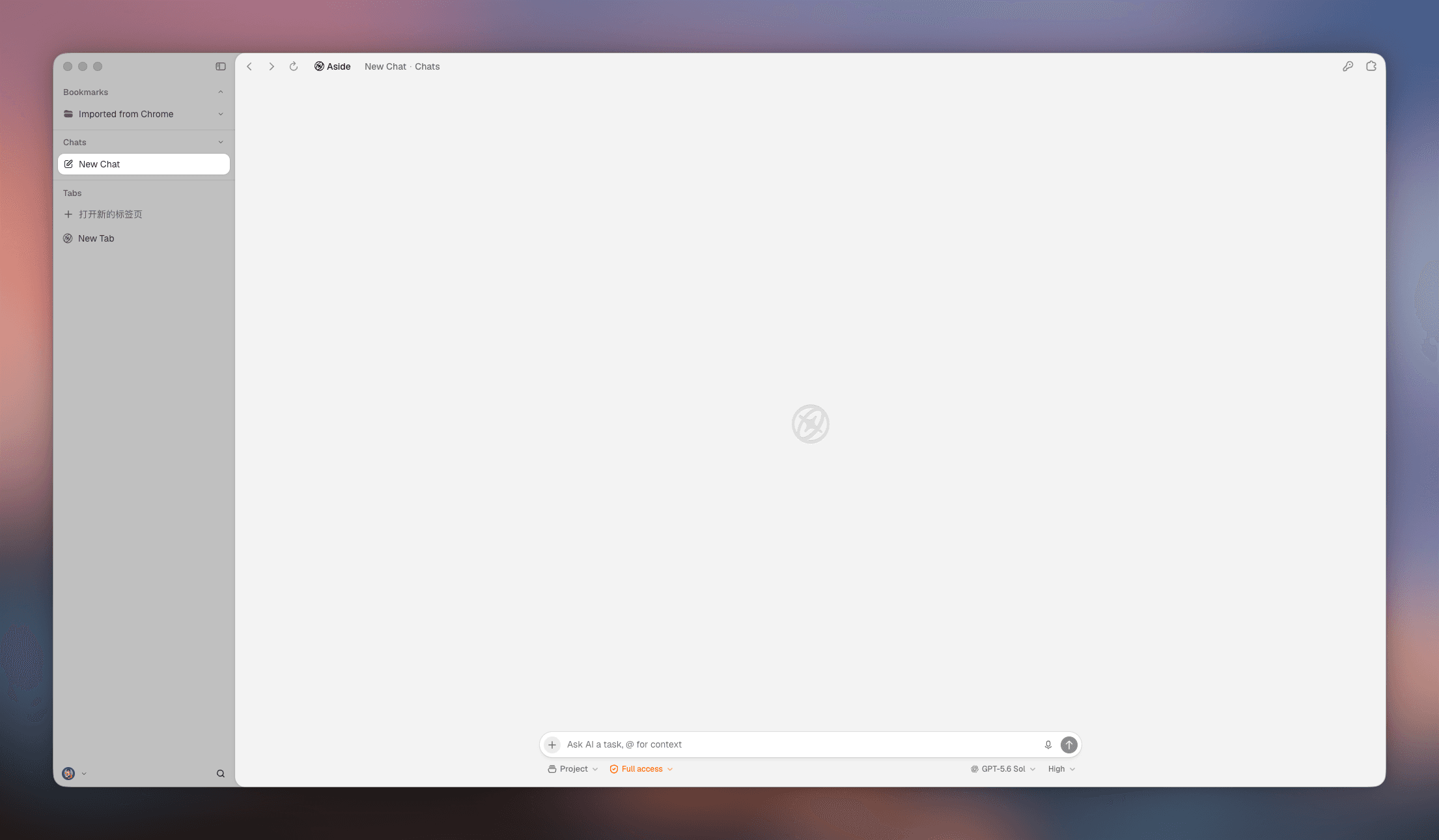
That helps with diagnosis, not permission changes. Tabbit cannot make Chrome allow a blocked window, approve a notification, or tell you that an unfamiliar redirect is safe. You still make the permission decision in Chrome and verify the destination yourself. For larger research tasks, AI browser workflows, browser automation, and too many browser tabs explain where Tabbit fits and where it does not.
FAQ
The answers above are also available in the page's FAQ section. The short version is simple: allow one known site, finish the legitimate task, and clean up the rule. If the behavior looks unrelated to that task, stop and investigate instead.
When browser settings, support pages, and several service tabs start getting in the way, try Tabbit Browser. Keep the evidence together, ask the side panel to summarize the instructions, and make the final permission choice yourself.

FAQ
How do I allow pop-ups for one site in Chrome?
Open the site, use the blocked-pop-up icon in the address bar, and choose the option to always allow pop-ups and redirects from that site. You can also add the site under Chrome Settings, Privacy and security, Site settings, Pop-ups and redirects.
Should I allow pop-ups for every website?
No. Allow the exact site only when you trust the publisher and need a real workflow such as checkout, sign-in, or a document preview. Keep the default blocking setting for other sites.
Why is a trusted site still not opening a pop-up?
Check whether an extension, the page's own JavaScript, a redirect, or an enterprise policy is involved. Test the exact link and review site permissions before changing a broader browser setting.
How do I remove a pop-up exception?
In Chrome Site settings, open Pop-ups and redirects, find the site's permission, and remove or reset it. Reload the site afterward and keep blocking enabled by default.
How do I check whether a pop-up or redirect is safe?
Pop-ups and redirects open windows or tabs, while notifications are separate permission-based alerts. Check the final domain against the service's own documentation or a bookmark you already trust. Do not enter credentials into a new window just because Chrome offered an allow prompt.
Can a Chrome extension block a permitted pop-up?
Yes. Extensions can change page behavior independently of Chrome's site permission. Test with extensions disabled or in a suitable private window before changing a wider setting.