ANDROID • EXTENSION GUIDE

Choose the extension. Then choose the browser.

For an Android browser with extensions, start with the add-on you need. Firefox uses Mozilla Add-ons; some Chromium browsers connect to desktop stores; Samsung has its own mobile add-ons. These are different ecosystems.

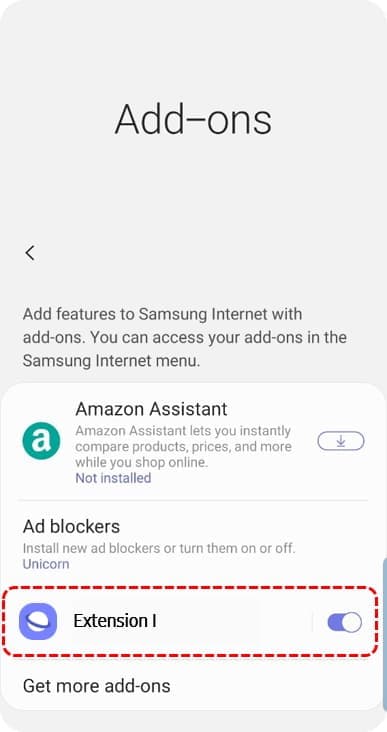
Samsung's official guide showing mobile add-ons inside its browser
Samsung's guide illustrates its own Add-ons route. The official interface illustration may differ from your current device.

Which Android browsers support extensions?

BrowserExtension sourceWhat to check
Firefox for AndroidMozilla Add-ons for Android

A clear starting point for uBlock Origin. Firefox requires Android 8.0 or later; not every desktop Firefox add-on supports Android.

Official source
QuettaChrome Web Store and Microsoft Edge Add-ons

The publisher documents both stores. Check each add-on on your phone; desktop interfaces and APIs may fail.

Official source
TitaniumChrome Web Store, Opera and Edge Add-ons

The project documents store installs and local CRX/ZIP files. Check the release and Android requirements before installing.

Official source
Samsung Internet / Samsung BrowserSamsung mobile add-ons and content blockers

Use the browser's Add-ons catalogue. A content-blocker app is not general Chrome Web Store support. Availability varies by device and store.

Official source
Chrome for AndroidNo desktop extension installation

Google's phone option "Add to desktop" queues an extension for a computer. It does not install it on the phone.

Official source

What we verified

This is an official-source compatibility guide, not an Android device benchmark. No Android phone or emulator was available for this review. Browser builds, device models, installation success, autofill, translation and ad-blocking performance were not tested. Extension versions above are listing snapshots, not installed versions.

Install through the browser's own route

Firefox

  1. Open the three-dot menu, then Extensions. Older screens may say Add-ons.
  2. Choose an extension, inspect its details and tap +. Review permissions, then Add.
  3. Use the same manager to disable or remove it. Private browsing requires separate permission.
Chromium extension browsers

  1. Open the official store supported by your chosen browser. Quetta documents Chrome and Edge stores; Titanium documents additional sources.
  2. Open the add-on listing and use the browser's install control. Menu names depend on the build.
  3. Open its popup, test its main action on an ordinary website, and check site permissions. Installation alone is not a pass.

Samsung

  1. Open the browser menu and choose Add-ons.
  2. Use the supported store listing to install a mobile add-on or content blocker, then return to enable it.
  3. Check whether your device offers it. Do not assume a Galaxy Store add-on is available on every Android phone.

Three everyday tasks, three checks

Ad blocking · uBlock Origin

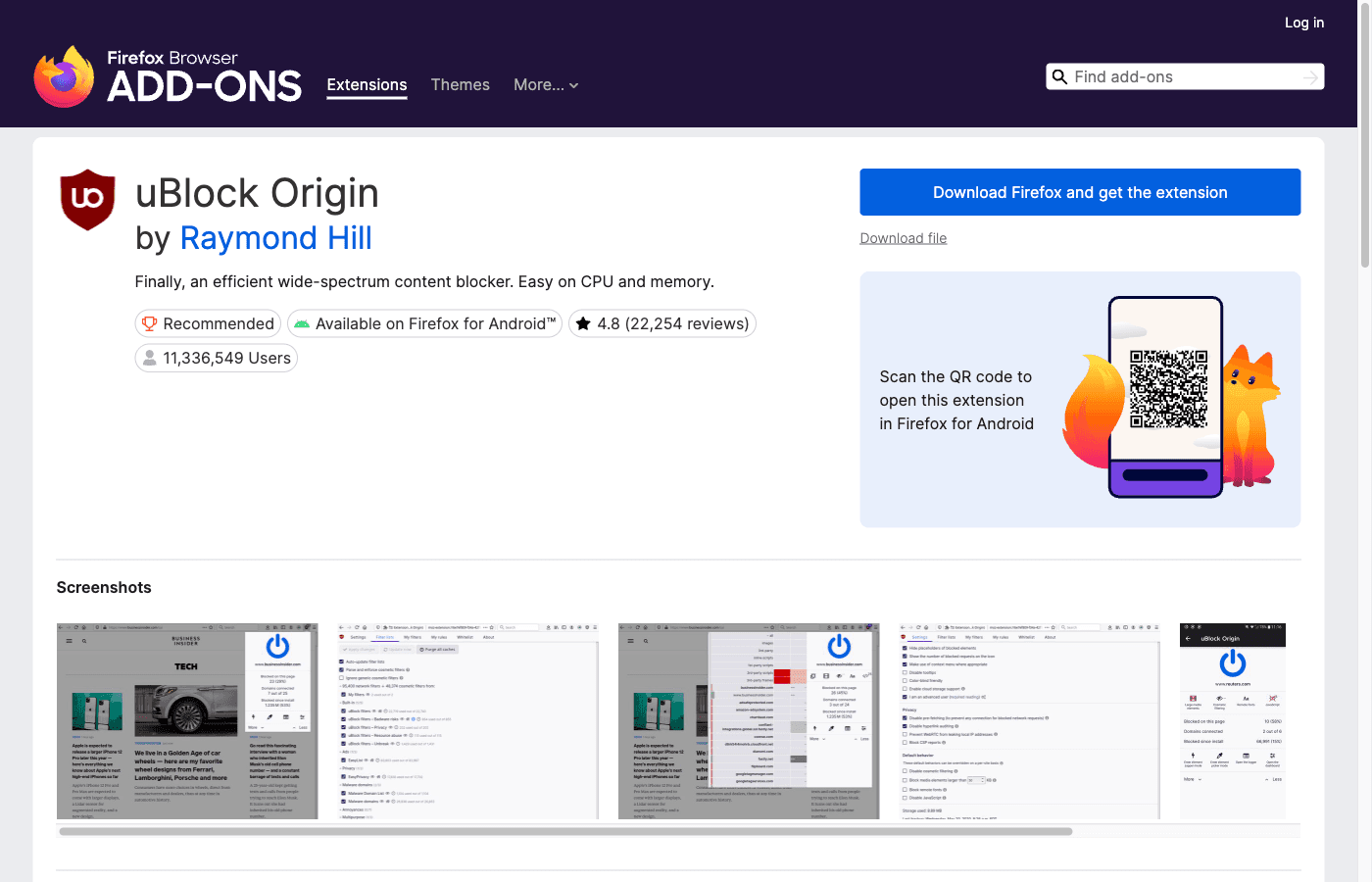
Mozilla's listing explicitly marks uBlock Origin 1.75.0 as available on Firefox for Android. Test a normal site with blocking on and off. We did not measure blocking effectiveness on an Android device.

Official source

Passwords · Bitwarden

Bitwarden documents Android app autofill. That is a separate route from a browser extension. Its desktop Firefox listing, version 2026.10.0, did not show an Android availability badge in our check; do not assume mobile extension support.

Official source

Translation · TWP

TWP 10.2.1.0 has a publisher-provided mobile screenshot, but the listing did not show an Android badge in our check. Verify it inside your browser before choosing. The publisher says protected Mozilla pages cannot be translated.

Official source
Official uBlock Origin listing showing its Firefox for Android availability label
Mozilla's Android availability label is useful evidence. This is a desktop view of the listing, not an Android installation test.

If an extension installs but does not work

Kiwi's official repository says maintenance ended after January 2025. Treat old Kiwi tutorials as historical instructions, and check a maintained browser instead.

  1. Try an ordinary HTTPS page, not browser settings or an extension store. Protected pages restrict add-ons.
  2. Check site access and private-mode permission. Open the popup and confirm its controls fit a touch screen.
  3. Update the browser and add-on, then disable other extensions one at a time to identify a conflict.
  4. Record Android version, browser build, add-on version and the failing action. Desktop-only APIs or native companion apps may prevent full compatibility.

Common questions

Can I install Chrome extensions in Chrome on Android?

The standard Android Chrome app does not provide desktop extension installation. "Add to desktop" on a phone is for your computer. A third-party browser needs its own explicit support.

Does extension support mean all desktop extensions work?

No. Store access, supported APIs, Android version, touch controls and the extension's own design all matter. Test the exact browser and extension combination.

Is Samsung ad blocking the same as a Chrome extension?

No. Samsung documents mobile add-ons and a content-blocker integration. Installing a blocker through that route does not make the whole Chrome Web Store compatible.

Do I need an extension for password autofill?

Not necessarily. Bitwarden provides Android app autofill. Check its official setup guide and test your browser's login form before changing browsers.

Continue your research on desktop

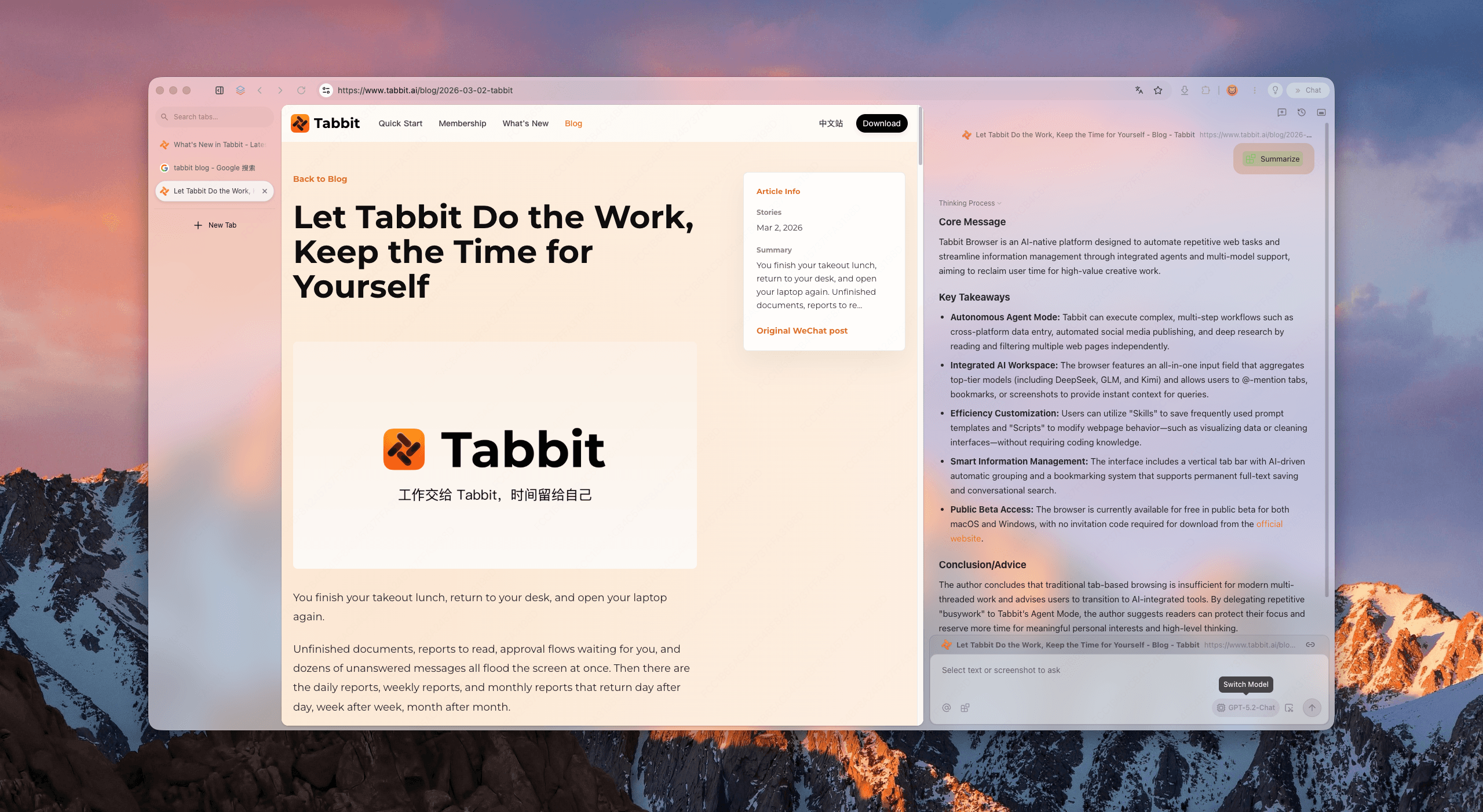
If your next task is reading and summarizing pages on a computer, explore Tabbit's desktop browser. Check current platforms and availability on the official site. This is separate from the Android extension choices above.

Explore Tabbit
Tabbit desktop browser with a webpage and an AI summary in the side panel
An older desktop demonstration of Tabbit summarizing a page. It does not show Android; check current availability and plans on the official site.
Android browser overview

© 2026 Tabbit Browser. The AI-native browser that understands your context.