
OFFICIAL TABBIT DOWNLOAD GUIDE
Install Tabbit on every device from one page
Get the latest official version for your device. Follow the desktop installation steps or scan a QR code for the App Store and supported Android stores.
macOS · Windows · iOS · Android
All versions
Choose your device
Check your Mac chip before downloading. For mobile, scan below or open the link directly on your phone.
Install by platform
Downloaded? Follow these steps
These instructions match the current Tabbit download flow. Avoid third-party installers and mirrors.
macOS
Download and install Tabbit on Mac
Apple Silicon and Intel Macs use different installers, but share the same installation flow.
Apple Silicon and Intel Mac supported
- Step 1
Choose your chip
Choose Apple Silicon for M-series Macs, or Intel for older Intel-based Macs.
- Step 2
Open Tabbit.dmg
Double-click Tabbit.dmg and wait for the disk image to open.
- Step 3
Drag into Applications
Drag the Tabbit icon into the Applications folder.
- Step 4
Launch Tabbit
Open Tabbit from Applications and follow onboarding to import bookmarks and settings.
 →
→ Applications
Windows
Download and install Tabbit on Windows
Launch the latest installer once; it completes the remaining download and installation automatically.
Windows 10 / 11 (64-bit)
- Step 1
Download the installer
Use the Windows button to get the latest Tabbit Installer.exe.
- Step 2
Run the installer
Double-click Tabbit Installer.exe and confirm the verified publisher if Windows asks.
- Step 3
Let it install
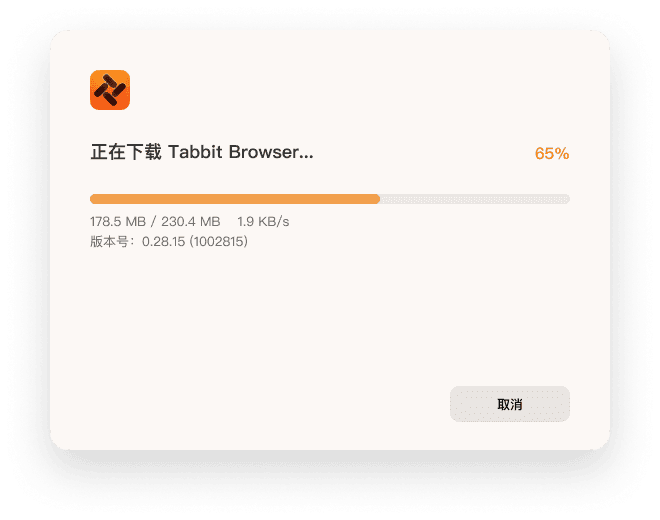
Keep your network connected while the installer downloads and installs Tabbit.
- Step 4
Launch and import
Open Tabbit and follow onboarding to bring over bookmarks and common settings.
iOS / iPadOS
Install Tabbit on iPhone or iPad
Scan with your camera to open the App Store, or open the store directly on this device.
Installed through the Apple App Store
- Step 1
Scan the iOS QR code
Use your iPhone or iPad camera to open the Tabbit App Store page.
- Step 2
Verify the app
Confirm the app name is Tabbit, tap Get, and complete system verification.
- Step 3
Open and sign in
Launch Tabbit and sign in with the same account to continue with synced data.

Scan to install on mobile
The codes only link to the official App Store listing or Tabbit mobile download page.
Open on this deviceAndroid
Install Tabbit on Android
The official mobile page selects appropriate store options for your device.
Major Android devices and app stores supported
- Step 1
Scan the Android QR code
Scan with your phone to open the official Tabbit mobile download page.
- Step 2
Choose a recommended store
The page detects your device and shows suitable app-store options.
- Step 3
Complete installation
Verify Tabbit in the store, then follow the system prompts to install.

Scan to install on mobile
The codes only link to the official App Store listing or Tabbit mobile download page.
Open on this deviceFirst launch
Bring your browser setup with you
Desktop onboarding helps you move familiar browser data into Tabbit.
Import bookmarks
Bring your frequently used sites from your old browser.
Import settings
Choose the browser settings you want to move.
Sign in to sync
Use the same account across devices to continue with synced content.

FAQ
Trouble downloading or installing?
Apple Silicon or Intel—which version do I need?+
Open Apple menu > About This Mac. Choose Apple Silicon for an Apple M-series chip, or Intel for an Intel processor.
How do I install the macOS download?+
Double-click Tabbit.dmg, then drag Tabbit into Applications. Open it from Applications when the copy finishes.
Does the Windows installer need a network connection?+
Yes. Tabbit Installer.exe downloads and installs the required files, so stay connected until installation finishes.
Why is there no direct Android APK?+
The official mobile page directs each device to appropriate store options and reduces the risk of using the wrong or unofficial package.
How can I verify an official download?+
Use this page, the Tabbit website, Apple App Store, or the official Tabbit mobile page reached by the QR code. Avoid third-party mirrors.