Wrong route
AI Studio API keys and Vertex AI service-account credentials are different connection paths. A key cannot fix a missing project or permission.
GEMINI 2.5 FLASH-LITE × SETTINGS
Gemini 2.5 Flash-Lite has many controls, but no universal best setting. Start with the exact provider and model ID, keep a small system instruction, then change one supported variable at a time. This guide separates documented controls from community starting points.
THE SETTINGS TRAP
A preset can mix provider fields, connector defaults and personal taste. That makes a bad response hard to diagnose. Establish the request path first, record the response state, and treat roleplay preferences as experiments rather than official model advice.
AI Studio API keys and Vertex AI service-account credentials are different connection paths. A key cannot fix a missing project or permission.
Changing temperature, top-p and context together tells you nothing about which variable helped.
A blank result can be a block, a quota error, an invalid model ID or a formatting problem. Inspect the response before rewriting your prompt.
DOCUMENTED BASELINE
Google documents the stable model and its limits. Connector UIs may expose only a subset of the API. Use the fields your provider actually accepts, and keep a copy of the first working request.
Choose Google AI Studio or Vertex AI in your connector. Use the stable ID `gemini-2.5-flash-lite`; do not use the shut-down `gemini-2.5-flash-lite-preview-09-2025`.
Google lists 1,048,576 input tokens and 65,536 output tokens. These are ceilings, not a promise that every old detail will be recalled.
Temperature, top-p, top-k, seed and stop sequences are API concepts; expose them only when the provider or connector documents support. Start with its defaults.
Google lists thinking as supported for this model. Streaming changes delivery, not the model’s safety policy. Verify the connector’s thinking and streaming fields before using them.
ONE VARIABLE AT A TIME
Use the same short prompt, system instruction, context block and output target for every run. Save two or three responses, then keep the change only if it improves the outcome you care about.
State the role, task, output shape and what the model must not invent. For roleplay, “advance the scene; do not restate the user” is a testable preference, not an official optimum.
Choose a practical output length for the task. If the answer is clipped, raise the output limit before raising temperature.
Test temperature or top-p or top-k, never all three at once. Keep seed fixed when the provider supports it; a seed is not guaranteed to make every run identical.
Compare thinking off/on only when the model and connector expose that control. Use it for planning-heavy prompts, not as a cure for a wrong model or blocked request.
A safety block, empty candidate or stop sequence is a different failure from low quality. Keep requests benign and inspect the provider feedback.
Do not jailbreak or bypass safety filters. That is unsafe, violates provider rules and destroys the signal you need for a useful test.
TROUBLESHOOTING
Match the symptom to the request path. The same message can mean different things in AI Studio, Vertex AI or a third-party connector.
| Symptom | Try first | Then check |
|---|---|---|
| 400 / invalid request | Remove an unsupported field and retry a tiny prompt. | Validate JSON shape, field names and connector support. |
| 401 / unauthenticated | Reconnect with the intended credential. | AI Studio needs its API key; Vertex AI service-account setup is different. |
| 403 / permission or policy | Confirm project, billing and API access. | Read the provider message; do not attempt a bypass. |
| 404 / model not found | Use `gemini-2.5-flash-lite` exactly. | Confirm the endpoint, region and connector model list. |
| 429 / RESOURCE_EXHAUSTED | Wait, back off and reduce request rate or payload size. | Review project RPM, TPM and RPD; a second key in the same project may not help. |
| Empty response | Try a short benign prompt and disable optional formatting. | Inspect safety feedback, finish reason, stop sequences and streaming handling. |
WHERE TABBIT FITS
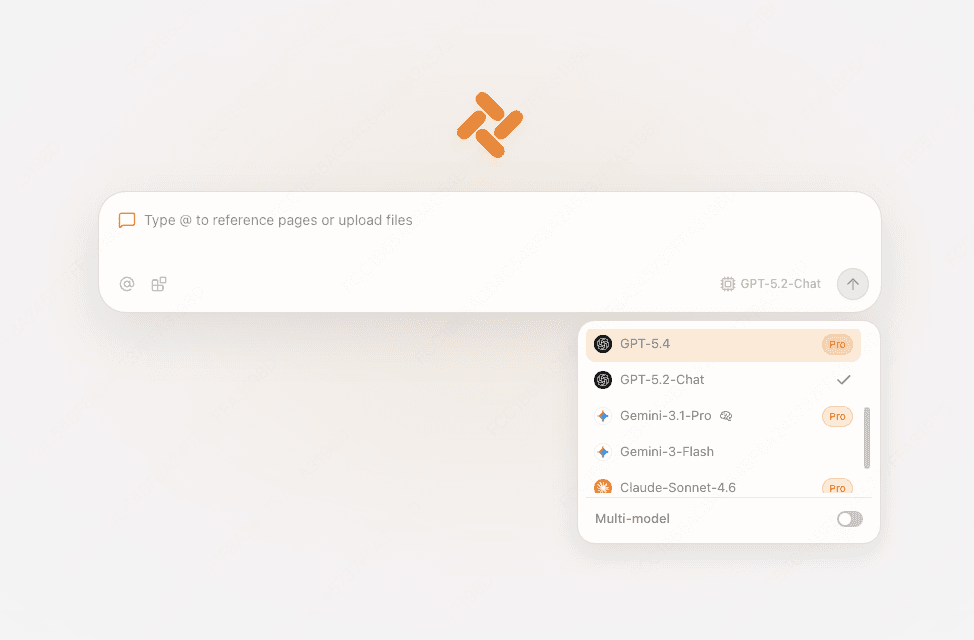
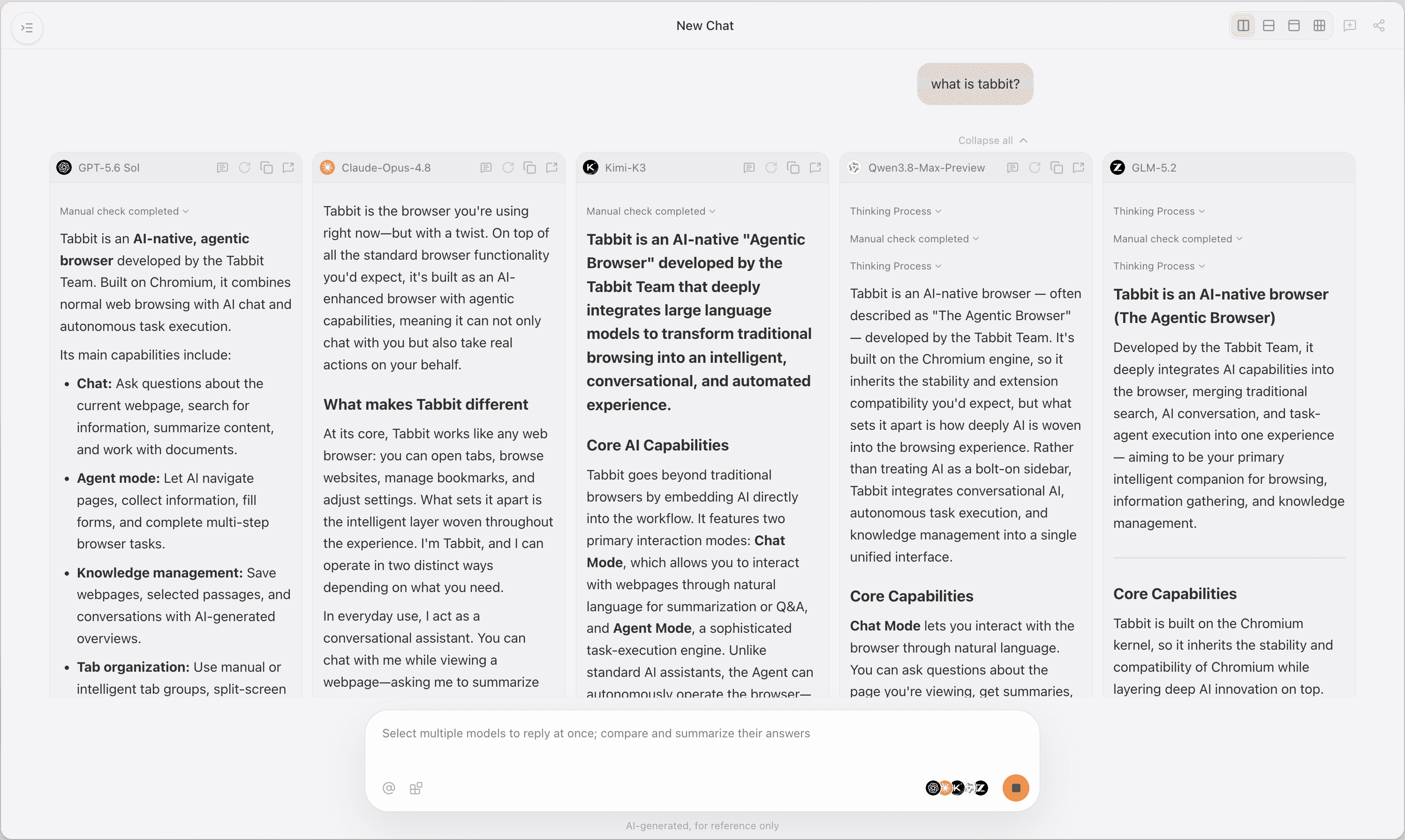
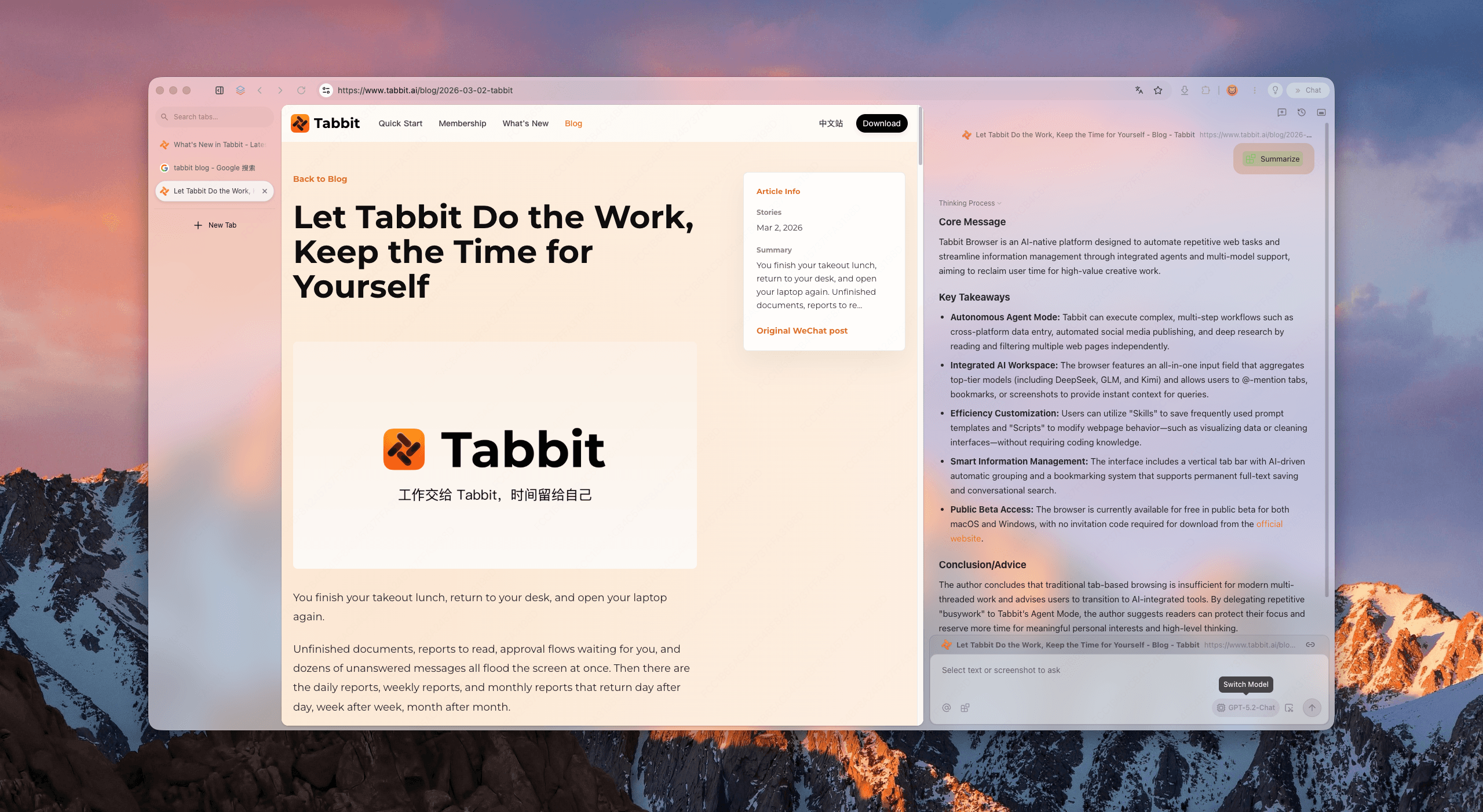
Tabbit is a browser workspace for the pages and files around your model test. The current international production snapshot lists Gemini 2.5 Flash-Lite as enabled, but your account, edition, quota and future deployment may differ. Use the live picker as the source of truth.
Keep Google docs, a prompt log, a character sheet or a test spreadsheet in tabs while you tune.
Use @ to reference an open page, screenshot or local file, then ask for a concise comparison of two runs.
Tabbit does not accept SillyTavern provider settings or a Google AI Studio API key. It cannot replace SillyTavern; it keeps browser context next to your work.
READ THE SOURCES
FAQ
Use `gemini-2.5-flash-lite`. The preview ID `gemini-2.5-flash-lite-preview-09-2025` is listed by Google as shut down.
There is no universal best value. Start with the connector default, change only temperature, and compare the same prompt before choosing a task-specific value.
Only when your API or connector documents and accepts them for this model. Do not invent UI fields or assume a setting is portable between providers.
Google lists thinking as supported. Test it only when your connector exposes the control and when the task benefits from extra planning; it is not a fix for authentication, quota or safety errors.
Check safety feedback, finish reason, stop sequences, streaming assembly, model ID and quota. A short benign prompt is a useful diagnostic.
They usually point to an invalid request, missing authentication, permission or policy, a missing model/route, and a rate or quota limit respectively. Read the provider’s exact response.
The current international production snapshot lists it as enabled, but availability depends on your live picker, account, edition and quota. We do not promise unlimited access or China-edition availability.
No. Tabbit does not accept a SillyTavern provider or Google AI Studio API key, and it does not replace SillyTavern.
Use the stable model ID, record the request state and keep safety in the loop. Open Tabbit when the next test depends on a doc, page, screenshot or file.
Available for macOS and Windows. Model availability and limits can change.