
You want a site gone from your workday, your child’s phone, or a shared computer. Then Chrome makes the answer look simpler than it is. A Reddit search thread asks whether a website can be blocked permanently, while another r/chrome post asks specifically about Chrome mobile (AskTechnology, r/chrome). The problem is not one missing checkbox. The control lives at different layers.
For a personal desktop, a Chrome extension is usually the shortest route. For a child’s account, use Family Link or Screen Time. For every device on a home network, use DNS or a router. For company-owned computers, ask an administrator for a managed Chrome policy. Tabbit Browser can help you research the right rule and keep the remaining work organized, but it does not replace any of those blockers.
Key takeaways
Chrome has no universal, built-in blocklist that follows a personal user from desktop to Android and iPhone.
Extensions are convenient on a desktop, but their permissions, profiles, and incognito behavior need checking.
Family Link and Screen Time are better for supervised children because the restriction belongs to an account or device, not one tab.
DNS, router, hosts-file, and enterprise controls work at different scopes. None is automatically permanent.
Use Tabbit for the work that remains after you restrict access: reading, collecting sources, and organizing tabs.
Website blocking options at a glance
| Control | Covers | Good for | Main limitation | Reversible action |
|---|---|---|---|---|
| Chrome extension | A supported browser profile | Personal desktop focus | Can be disabled, removed, or bypassed in another profile | Pause or uninstall the extension |
| Family Link | Supervised Google account and supported devices | Child accounts | Google says iPhones, iPads, and non-Chromebook computers cannot be supervised by Family Link | Change allowed/blocked sites |
| iOS Screen Time | An Apple device/account | iPhone and iPad restrictions | It is an Apple control, not a Chrome setting | Edit Web Content restrictions |
| DNS or router | Devices using that resolver/network | A household or managed network | VPN, cellular data, private DNS, or another network may bypass it | Remove the domain rule |
| Hosts file | One computer | A local, technical rule | Requires local access and does not follow the user | Delete or comment the entry |
| Enterprise policy | Managed Chrome installations | Company or school devices | Requires administrator ownership and policy deployment | Change the policy centrally |
How to block a website on Chrome desktop
Use an extension for a personal focus rule
Search the Chrome Web Store for a site blocker. Before installing, check the publisher, requested permissions, update history, and whether the extension supports schedules, password protection, or incognito mode. The Web Store listing is a product claim, not a guarantee that the rule cannot be bypassed.
After installation, add the smallest useful host list. Blocking example.com may also affect subdomains, while a rule for one subdomain may leave the rest of the site available. Read the extension’s own matching rules. Open a new tab and test the exact URL, then test a link that redirects to it.
If the block is for your own focus, keep the recovery path obvious. Save the extension’s settings, choose a schedule you can change, and do not treat a forgotten password as a security feature. If the block is for another person, get consent and use a managed family or device control instead of quietly installing software in their profile.
Chrome profiles matter. A rule in one profile does not necessarily affect another profile, Guest mode, a different browser, or a phone. Incognito access depends on the extension’s “Allow in incognito” setting. That is why a desktop extension is a focus aid, not a complete household filter.
The same separation helps with general browser distraction. A blocklist removes a destination. It does not decide which open work is still worth keeping.
Chrome on Android: choose the device or account layer
Chrome for Android does not offer a general “add this site to my blocklist” setting for a personal profile. Search results often show third-party apps or DNS instructions because the browser itself is not the right control surface.
For a child’s Google account, start with Google Family Link. Google’s help page lists website restrictions and options to allow or block certain sites. Read the device scope first: Google’s getting-started page says Family Link may not be available in every region and that iPhones, iPads, and computers other than Chromebooks cannot be supervised with it (Google’s setup limits).
For your own phone, decide what you actually need:
A short study session: use a reputable focus app or a scheduled DNS profile.
A family rule across home Wi-Fi: configure the router or DNS provider, then test both Wi-Fi and cellular data.
A safety rule for a child: use the account and device controls that the parent manages, and keep the recovery account private.
Do not call any of these permanent. Android can use another network, a VPN, a private DNS provider, or a different browser if those paths are not also controlled. The goal is a clear boundary that matches your authority, not a promise that a determined owner of the device can never change it.
iPhone and iPad: use Screen Time, not Chrome settings
Apple’s Screen Time guidance says parents can manage the apps and websites a child can access, including in Safari and other supported browser apps. Set up Family Sharing and the child’s own Apple Account first when managing a child’s device. Then open Screen Time and use Content & Privacy Restrictions or the web-content controls available on the current iOS version.
This distinction is easy to miss. Chrome is the app displaying the page, but iOS owns the device-level restriction. Removing Chrome and reinstalling it should not be your policy mechanism. Also check the current Apple documentation for your region and software version; Apple notes that not every parental-control option is available on every device.
When DNS, router, hosts, or admin policy makes sense
Use this second decision table before changing a system file or asking IT for a policy.
| Situation | Best starting layer | What to verify | What it does not cover |
|---|---|---|---|
| You need to stop one distracting site during work | Desktop extension or focus app | Profile and schedule behavior | Other browsers and devices |
| A child uses Android with a supervised Google account | Family Link | Account, region, and device eligibility | Unsupported devices and unmanaged accounts |
| A child uses iPhone/iPad | Screen Time | Family Sharing and current OS controls | Devices outside the Apple family |
| Everyone on home Wi-Fi should use a safer filter | Router or DNS | Wi-Fi, guest network, IPv6, and cellular fallback | VPNs and other networks |
| One Windows or macOS computer needs a local rule | Hosts file | Admin access and exact hostnames | Other users’ devices |
| A school or company owns the Chrome installation | Chrome Enterprise policy | Policy source and rollout scope | Personal devices outside management |
The Chrome Enterprise policy documentation is for administrators. It describes extension installation controls and an example runtime_blocked_hosts setting inside extension management. That is not a consumer toggle. Do not paste enterprise JSON into a personal Chrome settings page and expect it to work.
A hosts-file edit is also easy to overstate. It changes name resolution on one computer. It does not enforce a rule for a phone, and it may be ineffective when a browser uses a different resolver or the user can edit the file. DNS and router filtering widen the scope, but you must test the guest network, IPv6, VPNs, and cellular fallback if those matter.
A practical workflow with Tabbit Browser
Blocking access solves one part of the problem. The next morning you may still have twenty research tabs, duplicate sources, and a half-finished comparison. Tabbit Browser is useful at that point because it keeps browser work and AI context together.
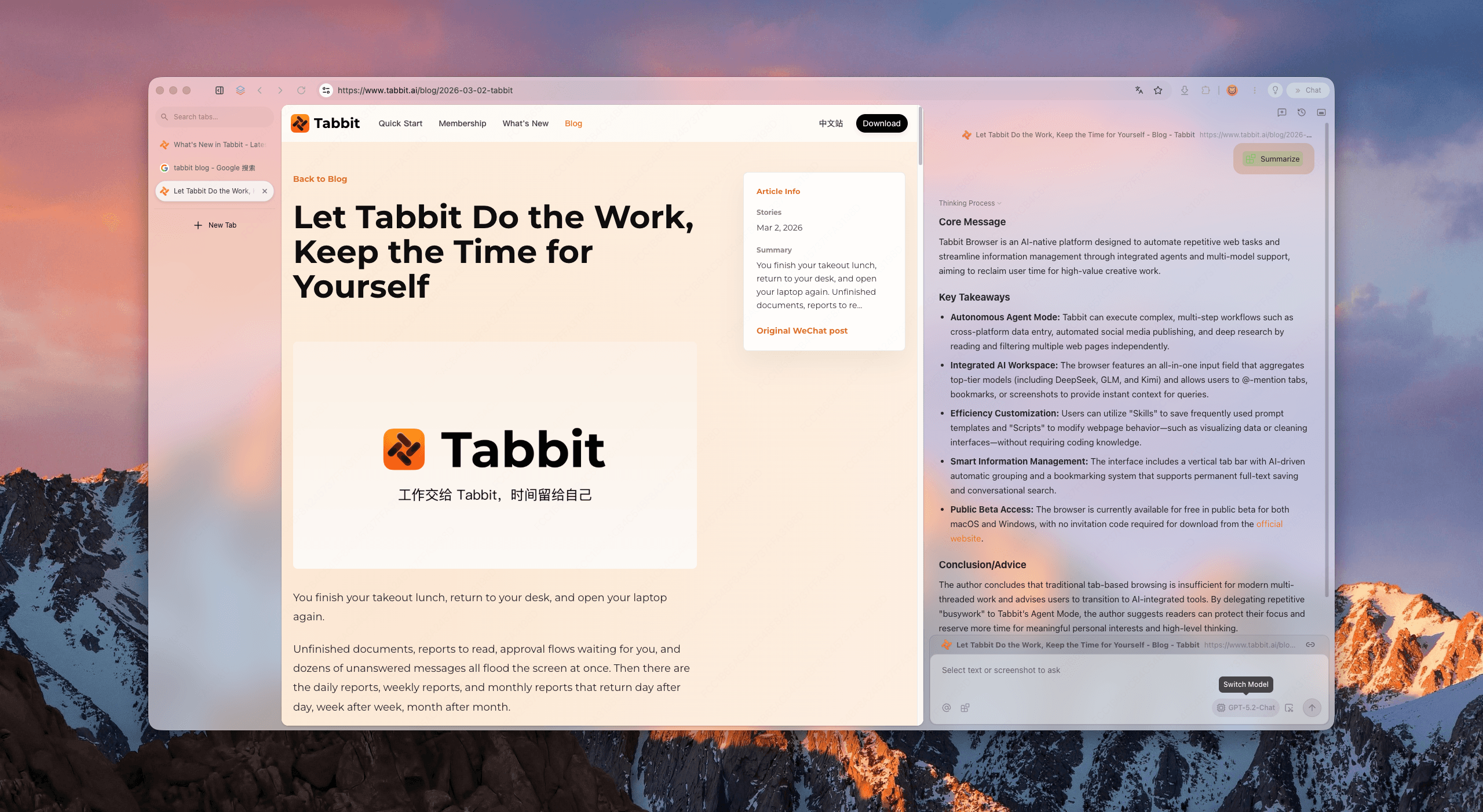
Here is a bounded workflow:
Use Chrome, Family Link, Screen Time, DNS, or your administrator to apply the actual site rule.
Open the official documentation and the pages you still need in Tabbit.
Use Chat with Page or the Omnibox to extract the rule, exception, and rollback step into notes.
Group the remaining sources with Smart Tab Organization. If the project keeps growing, the guide on tab sleeping and active work explains why a live page should not be treated like disposable clutter.
Keep the final policy link beside the work it affects. If you switch browsers, back up browser data first.
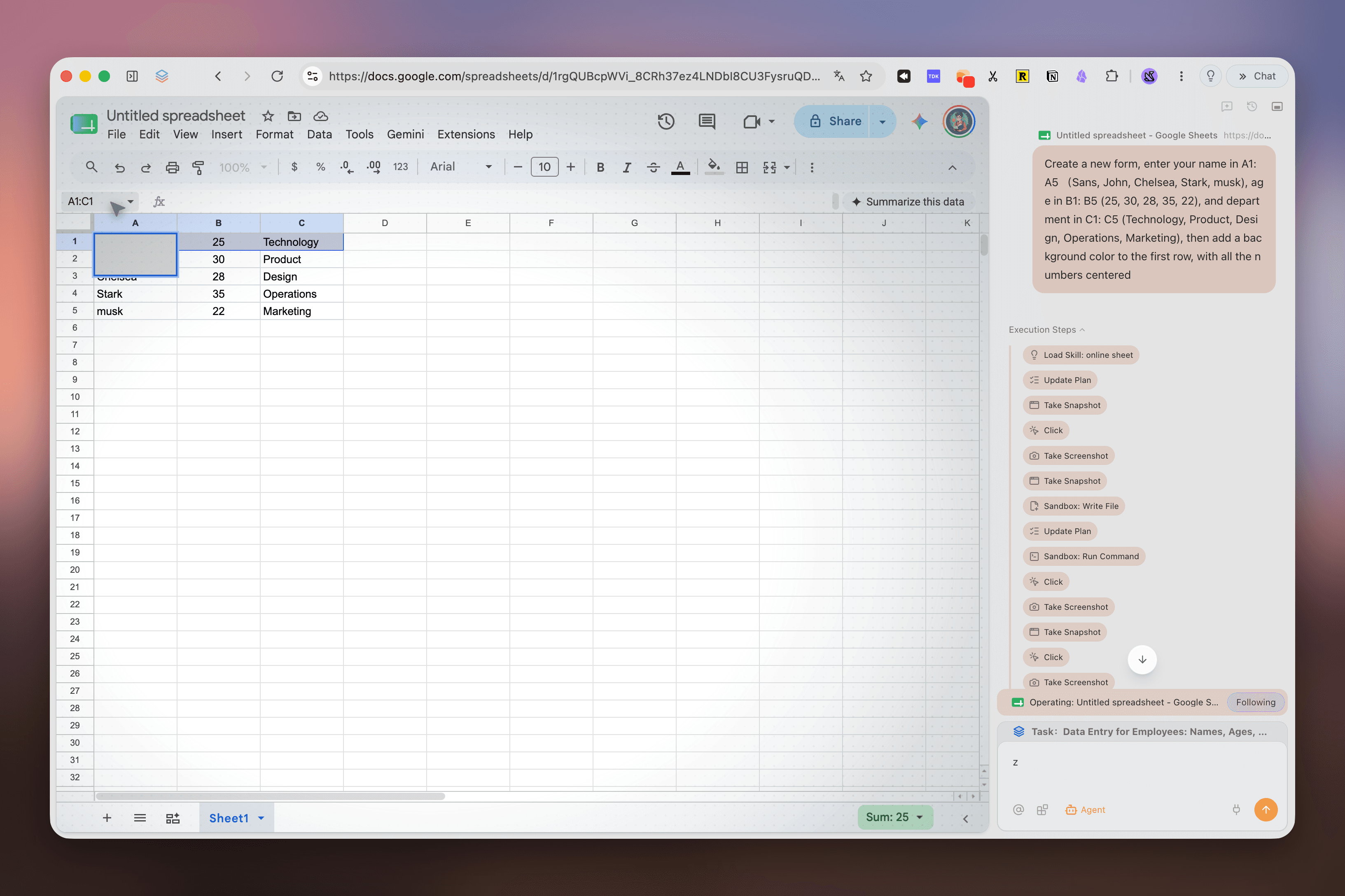
Tabbit can summarize a policy page, collect the URLs you want to keep, and help turn a long investigation into a checklist. It cannot enforce the checklist. It also does not replace browser automation, a company policy, a router filter, or a family safety product. For a broader product comparison, see Tabbit vs Chrome, and for the AI-browser context see what an AI browser is and agentic AI browsers.
If those pages must stay available across devices, review browser sync problems before you move the workflow.
A short decision guide
Blocking your own desktop distractions? Start with an extension and a schedule.
Managing a child’s Android account? Check Family Link eligibility and use its website controls.
Managing an iPhone or iPad? Use Screen Time and Family Sharing.
Filtering a home? Configure DNS or the router, then test every network path you care about.
Managing a school or company device? Ask the administrator for the supported Chrome policy.
Trying to keep the permitted work readable? Use Tabbit to collect sources and organize the open context.
The best method is the narrowest layer that covers the real problem. A browser extension is easier to undo than a router change. A managed family account is more appropriate for a child than a hidden desktop extension. A company policy belongs to the administrator. Those boundaries make the result easier to explain and easier to roll back.
FAQ
The answers above cover the practical cases. The important distinction is always scope: who owns the device, which browser is in use, and whether the user can change the network or account.
If you still need to research the setup, install Tabbit Browser and keep the official instructions, test URLs, and rollback notes in one browser workspace. Use a dedicated blocker for the block itself.

FAQ
Does Chrome have a built-in way to block any website?
Chrome does not provide one general website blacklist for every personal desktop and phone. On desktop, people usually use an extension; for children or managed computers, use the operating system, Family Link, DNS, router, or administrator controls that match the device.
How do I block a website on Chrome for desktop?
Install a reputable site-blocking extension from the Chrome Web Store, review its permissions, add the domains, and test an incognito or secondary profile only if the extension supports it. Remove the extension or its rules when you no longer need them.
Can I block websites in Chrome on Android without an app?
Chrome for Android has no general built-in blocklist for personal browsing. Use Family Link for a supervised child account, or a device, DNS, router, or third-party control that covers the browser and the user who needs the restriction.
How do I block websites on iPhone when using Chrome?
Use Screen Time content restrictions or an approved parental-control tool on the iPhone. The control belongs to iOS and the device account, so changing Chrome settings alone will not create a system-wide block.
Is a hosts file or DNS block permanent?
No. A hosts-file rule applies to one device and can be changed by someone with access. DNS or router rules can cover a network, but another network, VPN, private DNS, or a different device may bypass them unless those paths are managed too.
Can Tabbit Browser block distracting websites?
Tabbit helps organize tabs, read pages, and work through browser tasks, but it is not a website blocker or parental-control system. Use a dedicated control for blocking, then use Tabbit to keep the permitted research and work context organized.