

If Microsoft Edge works but no longer feels good to use, try Tabbit before moving to another conventional browser. You keep the familiar basics: Windows support, a Chromium-based web experience, vertical tabs, and an easy import from Edge. The difference is a quieter interface and AI that can do more than wait in a sidebar.
Tabbit can summarize the page in front of you, read several tabs together, work with screenshots or local files, operate websites through an agent, and turn the result into a document. Edge with Copilot can answer questions and help inside Microsoft’s ecosystem. Tabbit is a better fit when you want the browser itself to become a working space.
You do not have to make it your default on day one. Import a copy of your Edge data, give Tabbit three real tasks, and keep whichever browser leaves you with less cleanup.
Key takeaways
Tabbit is worth trying if you like Edge’s vertical organization but want less interface noise and a more focused workspace.
Its AI can use pages, tab groups, screenshots, bookmarks, highlights, and local files as context. That cuts down on copying and re-explaining.
Summary is the quick win. Agent Mode is the larger difference: it can navigate and act on websites while showing its execution steps.
Tabbit can turn browsing material into a draft, comparison, research note, or structured document instead of stopping at an answer.
Keep Edge for managed Microsoft 365 work, mobile sync, or company policies that depend on it. A two-browser setup is perfectly reasonable.
Tabbit vs Microsoft Edge at a glance
| What matters | Microsoft Edge | Tabbit | Practical meaning |
|---|---|---|---|
| Main idea | A mature general browser with Microsoft services and Copilot | An AI-native desktop browser built around context, Skills, and agents | Edge covers more conventional needs; Tabbit goes further on AI work |
| Interface | Feature-rich, with many optional panels, services, and prompts | Minimal page-first layout with translucent surfaces and a collapsible AI area | Tabbit tends to feel calmer once several tabs are open |
| Tabs and projects | Vertical tabs, tab groups, Workspaces, Collections | Vertical tabs, smart groups, task-specific tab groups | Both organize well; Tabbit ties organization more directly to AI context |
| Page summary | Available through Copilot and Edge features | One-click summary in the browser sidebar | Similar first step, different depth after the summary |
| Context | Current page and Microsoft-connected experiences | Tabs, tab groups, screenshots, highlights, bookmarks, and local files | Tabbit is easier to brief without repeated copy and paste |
| AI choice | Centered on Copilot and Microsoft’s model experience | Offers a choice of major models; availability depends on plan and region | Useful when one model is better for a particular task |
| Browser automation | Copilot features vary by market, account, and rollout | Agent Mode is designed to navigate and take multi-step actions | Tabbit is the clearer pick for browser-shaped work |
| Document output | Strong when your workflow already lives in Microsoft 365 | Can research, draft, structure, and create files from browsing context | Tabbit starts with the open web rather than an Office document |
| Platforms | Broad desktop and mobile support | Windows 10+ and macOS 12+; Linux and mobile are not currently available | Keep Edge if phone sync or Linux is essential |
| Migration | Already installed on Windows | Imports history, bookmarks, extensions, and settings from Edge | Easy to test without committing immediately |
These are product-shape differences, not benchmark results. Feature availability changes quickly, especially for AI products. The comparison reflects the official Tabbit product page and Microsoft Edge support pages checked on July 30, 2026.
Edge is good. That is not the problem
Edge is fast, compatible, and deeply integrated with Windows. Its vertical tabs are genuinely useful. Sleeping tabs help when a workday turns into a small tab zoo. If your company runs on Microsoft 365 and managed Edge profiles, staying put may be the sensible answer.
The frustration comes from accumulation. Shopping tools, rewards, news, account prompts, sidebar apps, and Microsoft service suggestions all want a little space. Many can be disabled. Having to keep disabling them is the tiring part.
Tabbit keeps the page as the main object. Tabs sit in a vertical rail, and the AI workspace appears when you call it. Its translucent frame lets the desktop background show through. Looks will not finish your work, but a calm window is pleasant when you spend most of the day inside it.
Reason 1: the interface feels quieter
Edge is capable before you change a setting. It is also eager to show what else it can do. Tabbit feels closer to a work surface. Its vertical tab list gives titles room to breathe, and related tabs can stay together in a group. There is less hunting across a strip of tiny favicons.
The transparent background is the part people notice first. It gives the window a soft, wallpaper-aware appearance. Yes, it is cosmetic. It also matches the rest of the design: controls stay muted until they are needed.
Here is a fair way to test the design:
Open the same 12 pages in Edge and Tabbit.
Put six pages into one project group.
Switch between the third, seventh, and eleventh tab without searching by favicon.
Close the AI sidebar and work for ten minutes.
Ask which window makes it easier to remember what you were doing.
Reason 2: a page summary takes one click, then stays useful
Summarization is an ordinary AI feature now. That is fine. You open a long policy, product announcement, paper, or Reddit thread and want the shape of it before investing 20 minutes.
In Tabbit, the current page can remain visible while the summary appears alongside it. You can scan the core message, check the takeaways against the source, and ask a follow-up without moving the text into a separate chat. The source link stays attached to the conversation, which lowers the chance of forgetting what the answer was based on.
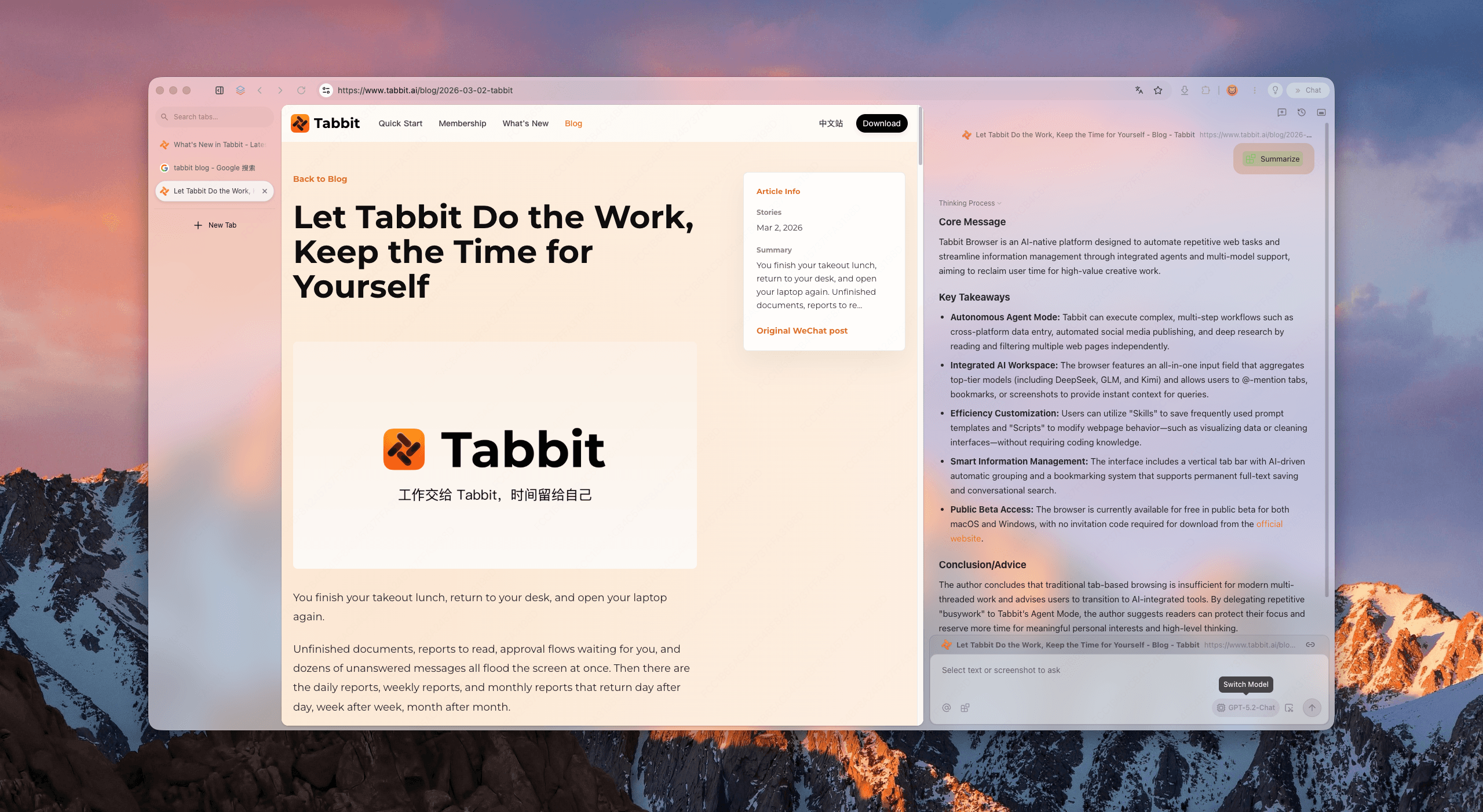
Try this on a page you already need to read:
Summarize this page in five bullets. Separate confirmed facts from the author's opinion. End with two claims I should verify before sharing.That prompt leaves you with a review checklist. For a dense announcement, ask for dates, requirements, and exceptions. For an argument, ask for evidence and the strongest counterpoint. The AI can still make mistakes; keeping the page in view makes them cheaper to catch.
Edge can summarize too. The difference becomes clearer after the first answer. Tabbit lets the page join a wider context that can include another tab, a screenshot, a highlighted passage, or a local file. Summary is the door, not the room.
Reason 3: you can point at your context instead of rebuilding it
Most AI tools make you do clerical work first. Copy a paragraph. Paste a URL. Upload the same PDF. Explain that the pricing page belongs to company A, while the notes came from last Tuesday’s call.
Tabbit’s input can reference what is already around you. According to its current product page, that includes pages, screenshots, highlights, local files, bookmarks, and tab groups. You can use @ to bring the relevant item into the request.
Imagine you are comparing three project management tools. In Edge, you might open the product pages, take notes in OneNote, ask Copilot questions, then shape the answer in Word. That works well in a Microsoft 365 organization, though you still move between containers.
In Tabbit, you can keep the three pricing pages in a group, add a screenshot of a plan detail and your local requirements document, then ask:
Compare @Pricing pages against @Team requirements.
Create a table with price, guest limits, automation limits, SSO, and the main mismatch.
Do not infer missing information. Add the source page after each confirmed claim.
The browser already knows which pages and files you mean, so the request starts closer to the real problem. This is handy for research, procurement, recruiting, and product work. If most of your day involves one web app and little reading, the benefit will be smaller.
Reason 4: Agent Mode can operate the browser
Chat is useful when you need an answer. A browser agent is useful when the answer is “click through these pages, collect the details, and leave me with a result.”
Tabbit’s Agent Mode is designed for multi-step web tasks. The agent can inspect a page, make a plan, click, type, take snapshots, and move through the steps while the execution log remains visible. You can follow what it is doing instead of staring at a spinner and hoping for the best.
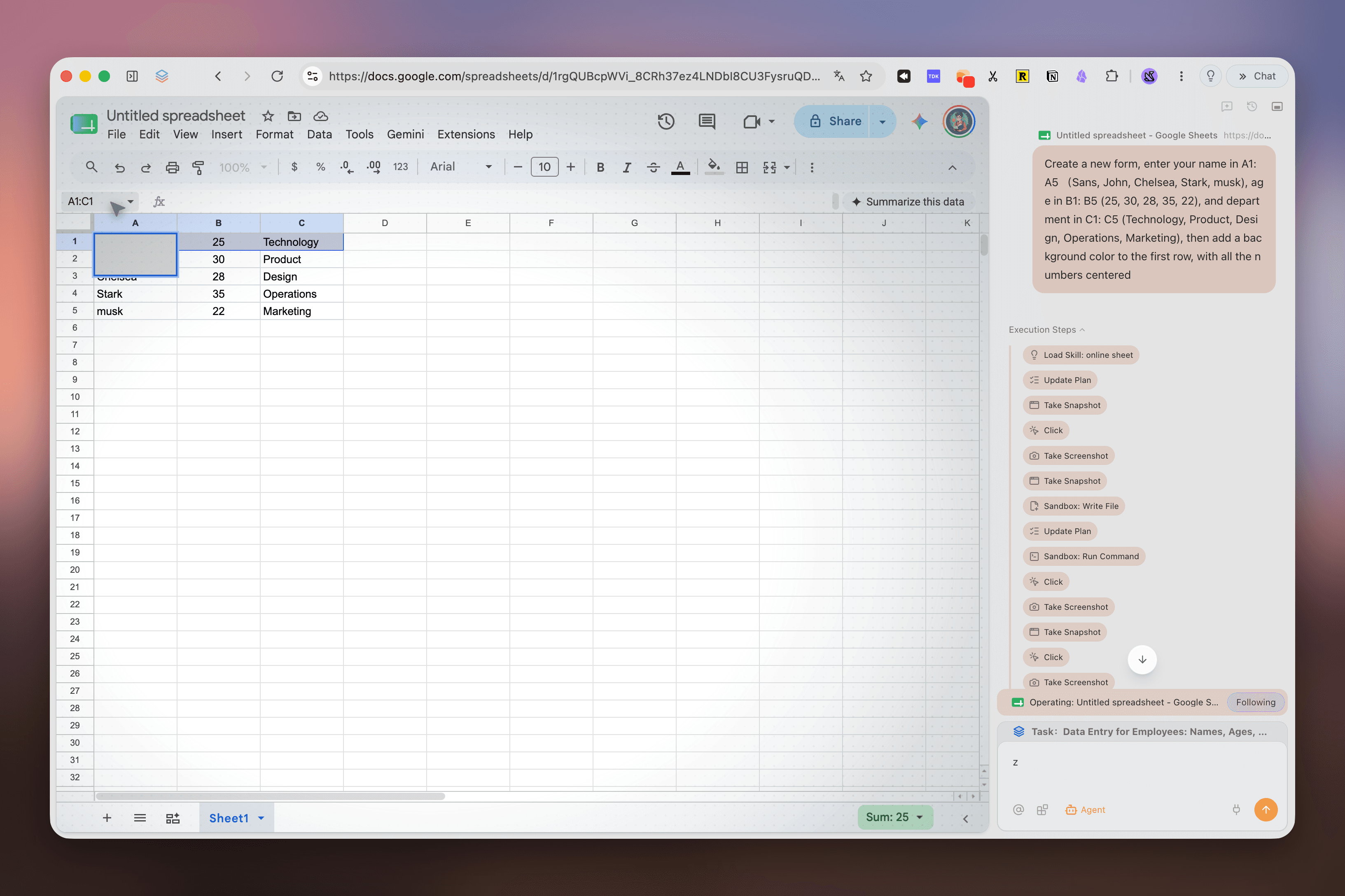
A simple example is data entry. Give the agent five names, ages, and departments, then ask it to create a sheet, fill the cells, format the header, and center the numbers. The screenshot above shows that kind of task running in Google Sheets.
More interesting examples cross pages:
Open five event pages, collect the date, location, price, and application deadline, then create a shortlist.
Visit a set of product documentation pages, extract the supported authentication methods, and put the evidence into a comparison document.
Read a long discussion thread, identify substantive disagreements, and save the useful comments with links.
Check several listings against a written requirement, discard obvious mismatches, and explain why the remaining ones survived.
These tasks need supervision. Websites change, and forms can be ambiguous. Do not let an agent make sensitive purchases, publish content, or submit consequential information without review. Start with read-heavy, reversible work. Watch the steps and check the output.
For a deeper look at the concept, see what an agentic browser is and our guide to an agentic browser for Windows.
Reason 5: research can end as a document, not a chat transcript
An AI answer often creates another chore: turn it into something a colleague can use. A wall of chat text is raw material, not a brief or meeting note.
Tabbit can use its Writer, Research, Operator, and Analyst roles with Skills suited to the job. The practical benefit is that browsing can end in a file or a structured draft. You can ask for a research note with sources, a comparison table, a first-pass proposal, or a document that follows a format you provide.
Suppose you have:
two competitor landing pages;
a PDF containing customer interview notes;
a screenshot of a pricing experiment;
an old launch brief whose structure you want to reuse.
Put those sources into the request and ask:
Draft a two-page launch brief using @Old brief only as the structure.
Use @Interview notes for customer language and the two open competitor pages for positioning context.
Treat @Pricing screenshot as provisional.
Include: audience, problem, promise, proof, objections, and open questions.
Add a source note after each section.
The result still needs an editor. Tabbit gets you to the editable object faster; it does not remove judgment. People who turn web research into memos, outlines, or specifications will feel this sooner than casual browsers. Our browser productivity guide covers more ways to judge this kind of fit.
Reason 6: Skills turn repeated instructions into reusable tools
Prompts are easy to write and surprisingly annoying to maintain. The good one is always somewhere in a chat from two weeks ago. You find it, fix the outdated formatting rule, then explain your preferred structure again.
Tabbit Skills make repeated instructions reusable. A Skill can carry a task method, a preferred output format, or site-specific know-how. Instead of rebuilding a workflow every time, you call the Skill and provide the new context.
A content researcher might save a Skill that:
extracts claims and supporting links from a page;
labels facts, opinion, and unclear statements;
produces a short brief with a fixed set of headings;
refuses to fill gaps with guesses.
A recruiter could use one to compare role requirements with candidate material. A product manager might keep a release-note Skill that turns issue links and a specification into a customer-facing draft.
Skills pay off when the task recurs. If you summarize one article a month, skip it. If you process the same kind of page every morning, a Skill can remove a surprising number of small decisions.
Tabbit also offers model choice, subject to plan and region. One model may be better for a careful rewrite, another for a long-context comparison. You can switch without rebuilding the workflow.
Reason 7: switching from Edge is a test, not a leap
Browser migration sounds larger than it is. Tabbit’s current download page says it can bring over history, bookmarks, extensions, and settings from Edge, Chrome, or Safari in one click. It runs on Windows 10+ and macOS 12+, including Intel and Apple Silicon Macs.
Do not import everything blindly. Old extensions and years of bookmarks can recreate the clutter you wanted to leave.
Use this sequence instead:
Install Tabbit and import a copy of your Edge data.
Keep only the extensions you used in the last month.
Open one real project, not a collection of demo pages.
Run a summary, a multi-source comparison, and one reversible Agent task.
Test your essential sites: work login, banking, video calls, uploads, printing, and password autofill.
Keep both browsers for a week before changing the default.
Edge users comparing the wider market can also read the best browsers for Windows 11, our broader guide to browsers with AI features, or a shortlist of internet browsers for Windows.
Three practical tests for your first hour
Product tours make every feature look necessary. Your own work is a better test.
Test 1: a page you have been avoiding
Open a report or discussion you need to read. Ask for the argument, evidence, dates, and unresolved questions. Check three details against the page.
Test 2: a comparison with messy sources
Open three product pages and add a local requirements file. Ask for a comparison that marks missing information instead of guessing.
Test 3: a small browser action
Choose a reversible task such as organizing public information into a sheet. Let Agent Mode work, watch the action log, and stop it if the plan drifts.
After the three tests, ask only:
Did I copy and paste less?
Was the result easier to verify?
Did I finish with something usable?
Did the interface help me stay oriented?
When you should keep Edge
Tabbit is not the right Microsoft Edge alternative for everyone. Keep Edge as your main browser if your company requires managed Edge policies, if Microsoft 365 integration is central to your day, or if you need reliable mobile sync across Windows and a phone. Tabbit is currently desktop-only, with Linux and mobile listed as future platforms.
Edge is also a safer choice if you want a mature general browser and only occasional AI assistance. Copilot may be enough because it is already there and tied to services you use.
Privacy needs a sober look too. Tabbit says browser data such as history, bookmarks, highlights, and chats is encrypted on the device, while prompts and required context go to the selected model or cloud provider. That is not the same as keeping every task local. Before using either Edge or Tabbit with confidential material, check your organization’s rules, the chosen model, sync settings, and the current privacy terms.
Some people will land on a two-browser setup: Edge for managed work and Tabbit for personal research. That is a clean boundary, not a failed migration.
Choose by scenario
| Your situation | Better starting point | Why |
|---|---|---|
| Edge feels visually busy and you want a calmer desktop browser | Try Tabbit | Minimal page-first layout, vertical tabs, and translucent surfaces |
| You summarize long pages several times a week | Try Tabbit | The source stays visible and can become part of a larger context |
| You compare many tabs, screenshots, and local files | Try Tabbit | Context references reduce copy-and-paste briefing |
| You want AI to navigate pages or fill a sheet | Try Tabbit, with supervision | Agent Mode is built around visible multi-step browser actions |
| Your research must become a brief or structured file | Try Tabbit | Research, writing, analysis, and file creation can share the same context |
| Your company manages Edge through Microsoft policies | Keep Edge for work | Compatibility and administrative control matter more than interface taste |
| You need browser sync on iPhone or Android | Keep Edge or choose another cross-device browser | Tabbit has no mobile app at the time of writing |
| You use AI only occasionally | Keep Edge unless the design alone appeals | Copilot may already cover the small number of tasks you have |
| You want to leave Chromium entirely | Choose Firefox instead | Tabbit is an AI workflow change, not an independent-engine choice |
| You are curious but not ready to switch | Run both for one week | Importing a copy makes the trial low-risk |
Final verdict
If you are searching for an Edge browser alternative because Edge feels crowded, Tabbit is worth an hour of your time. Its cleaner, translucent interface is the immediate attraction. It may stay installed because of the workflow underneath: page-aware summaries, context from tabs and files, reusable Skills, browser agents, and documents made from material you were already reading.
Do not decide by asking the agent a trivia question. Give it the browser work that currently scatters across tabs, chat windows, notes, and documents. Ask it to summarize a difficult page, compare several sources against a local file, then complete one small task in the browser.
If those three jobs leave you with less copying and a result you can verify, Tabbit is doing something meaningfully different from Edge. If they do not, keep Edge. The trial is cheap, and the answer should come from your work rather than ours.