
Few browsing glitches are as frustrating as the endless Cloudflare checkmark loop. You click “Verify you are human,” the spinner turns, the box ticks green for a split second, and the page immediately reloads back to an empty checkbox. What makes it maddening is that the exact same website often opens instantly in another browser on your machine or inside a temporary private window.
In one community report on r/firefox, users noted that while switching browsers or running hardened privacy setups solves ad fatigue, it frequently introduces subtle compatibility bugs and security check roadblocks on common websites. When a security challenge breaks, you cannot access research portals, documentation hubs, or work dashboards.
The problem is rarely that Cloudflare is down. Instead, your browser environment is failing one of the silent cryptographic handshakes required to issue and persist a valid session token. This guide walks through the exact mechanics behind the loop, isolates the failure layer step-by-step, and introduces Tabbit Browser as a clean, Chromium-based alternative for uninterrupted research.
Key takeaways
Do not clear your entire browser history or delete your profile; isolate the single site's cookies first.
The verification loop almost always stems from a broken
cf_clearancecookie, an extension modifying request headers, an anti-fingerprinting flag masking Canvas APIs, or system clock drift.If an Incognito or Private window works, your network and IP are fine—the issue is strictly inside your extensions, cookies, or profile configuration.
Disabling
privacy.resistFingerprintingin Firefox or relaxing aggressive canvas blockers restores the hardware signals Turnstile requires.For demanding research workflows where you cannot afford custom flag breakage, Tabbit provides a standard Chromium runtime with native AI workspaces and parallel task tabs.
What causes the verification loop at a glance
Before changing twenty settings at random, match what you see on screen with its underlying failure boundary.
| Visible Symptom | Failure Layer | Primary Root Cause | Immediate Test Step |
|---|---|---|---|
| Checkbox checks green, then page instantly reloads back to checkbox | Cookie / Storage | cf_clearance cookie blocked, corrupted, or rejected by browser storage rules | Delete cookies for this single domain only |
| Spinner spins endlessly without ever showing a checkmark | Extension / Script | Ad blocker or script blocker preventing Cloudflare's api.js or Turnstile iframe from executing | Test page in Private / Incognito mode with all extensions off |
| Works in Chrome, loops in Firefox or hardened browsers | Browser API / Fingerprint | privacy.resistFingerprinting or Canvas blocker spoofing hardware metrics | Set privacy.resistFingerprinting to false in about:config |
| Fails on every browser and device on the same Wi-Fi | Network / IP Reputation | IP address flagged due to dirty VPN exit node or shared proxy subnet | Disconnect VPN or test via mobile hotspot |
| Checkmark fails immediately with an error code | System Time / TLS | System clock drift causing cryptographic challenge tokens to expire on receipt | Enable automatic time and time zone sync in OS settings |
Understanding the mechanics: How Cloudflare validates your browser
To fix the loop cleanly, it helps to understand what Cloudflare is trying to accomplish during those two seconds of spinning. If the terms are unfamiliar, start with what a CAPTCHA challenge response means before following the checks below.
Cloudflare does not just look for a mouse click. When you land on a protected page, the Turnstile widget and Managed Challenge execute several silent checks in the background:
JavaScript and API execution: It tests whether the browser supports modern Web APIs, including Canvas rendering, WebGL context, and Resource Timing.
Header and TLS consistency: It compares the HTTP
User-Agentand Client Hints against the low-level TLS handshake fingerprint (such as JA3/JA4 signatures). If an extension tells the site you are on Chrome 130 on Windows, but the TLS cipher list belongs to Firefox on Linux, the request is flagged as an automated bot.Issuing the
cf_clearancetoken: Once validated, Cloudflare writes a short-livedcf_clearancecookie into your browser. Every subsequent asset request and page navigation must transmit this exact cookie alongside matching headers.
When you get stuck in a loop, you have passed step 1 or 2, but step 3 failed: the cookie could not be saved, was immediately wiped, or was rejected because a subsequent request sent mismatched headers.
A step-by-step fix for single-browser loops
Follow these steps in order from lowest risk to deepest configuration.
1. Clear site-specific cookies and storage
Never start by wiping your entire browser cache. Clearing all data destroys active logins across hundreds of tabs, creates browser sync problems, and forces you to re-authenticate everywhere.
Instead, clear data only for the offending domain:
On the looping page, click the Padlock or Site Settings icon on the left side of the address bar.
Select Cookies and site data (or Manage cookies and site data).
Find the entry for the current domain and any related
cloudflare.comcookies, then click Delete / Remove.Refresh the page and attempt the challenge once more.
If an invalid or expired cf_clearance cookie was stuck in local storage, this provides a clean slate for the server to write a fresh token. If you ever plan a full browser reset or profile overhaul, review the browser data backup checklist first.
2. Isolate extension conflicts and User-Agent spoofers
Extensions that intercept web requests are the most frequent cause of single-browser verification loops.
Open the target page in a Private or Incognito Window. If the verification completes immediately, the culprit is an active extension in your main profile.
Key extensions to audit:
Ad blockers with overly broad custom filters: Check if a custom filter list blocks
challenges.cloudflare.comor Turnstile scripts.User-Agent Switchers: If an extension rewrites your User-Agent string dynamically, the token issued during the challenge will not match the User-Agent sent on the very next HTTP request, triggering an immediate re-challenge.
Privacy and anti-tracking extensions: Tools like Privacy Badger, NoScript, or CanvasBlocker can block the execution of non-intrusive challenge telemetry.
Disable extensions one by one or review extension compatibility guidelines to see which tools might conflict with modern security scripts.
3. Adjust aggressive anti-fingerprinting flags
In privacy-focused browsers like Firefox, LibreWolf, or hardened Chromium forks, users often enable experimental flags that deliberately break standard browser metrics.
On Reddit's r/firefox community, users frequently report that setting privacy.resistFingerprinting = true in about:config triggers permanent Turnstile loops. This flag spoofs screen resolutions, forces canvas noise, and restricts the Resource Timing API. Cloudflare detects these missing or distorted APIs as signals of a headless scraper script.
To verify and resolve this:
Type
about:configin Firefox's address bar.Search for
privacy.resistFingerprinting.If it is set to
true, toggle it back tofalse.Check
dom.enable_resource_timingand ensure it is set to its defaulttrue.Restart the browser and reload the page.
You do not have to sacrifice all privacy. Modern built-in Enhanced Tracking Protection (Standard mode) blocks third-party trackers effectively without breaking legitimate API verification.
4. Sync system clock and check DNS-over-HTTPS routing
Cloudflare's challenge tokens contain strict cryptographic timestamps. If your operating system clock has drifted by just two or three minutes, the server will evaluate the received token as expired the moment it arrives.
Windows: Go to Settings > Time & Language > Date & Time, enable Set time automatically, and click Sync now.
macOS: Open System Settings > General > Date & Time, and ensure Set time and date automatically is turned on.
Similarly, check if your browser has an independent Secure DNS (DNS-over-HTTPS) setting enabled (e.g., in Chrome or Firefox settings) that routes requests through a filtered DNS provider like NextDNS or AdGuard DNS. If your DNS provider blocks Cloudflare telemetry domains or assigns an IP that conflicts with your local gateway routing, Turnstile cannot finish its handshake. For broader site rendering issues after network changes, refer to our broken site diagnostics guide.
5. Check hardware acceleration and WebGL support
Cloudflare Turnstile often performs a lightweight GPU canvas check to verify that a real display adapter is rendering the page rather than an emulated server container.
If you previously turned off hardware acceleration to troubleshoot a graphics glitch, the browser may fail WebGL context initialization:
Open your browser settings and search for Hardware acceleration.
Ensure Use graphics acceleration when available is switched ON.
Restart the browser.
A practical option: Tabbit Browser
When you are conducting deep research, cross-referencing industry reports, or managing multi-tab projects, spending forty minutes toggling browser flags to fix one broken security gate destroys your focus.
This is where Tabbit Browser offers a practical path forward. Built on a clean, modern Chromium architecture, Tabbit maintains full compliance with standard WebGL, Canvas, and web platform specifications. It does not tamper with standard headers or break legitimate anti-bot handshakes, ensuring you never get locked out of essential sites while researching.
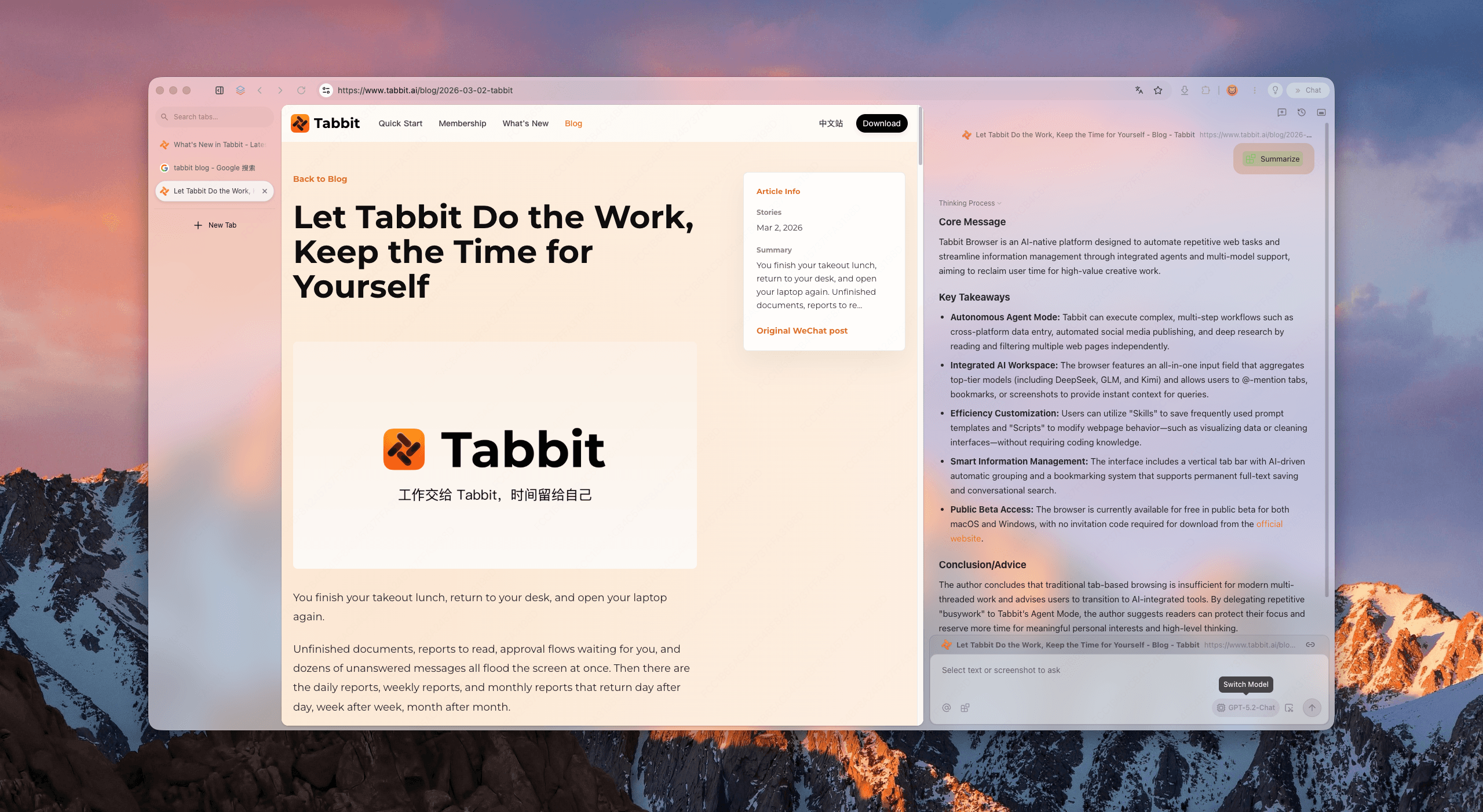
A clean workspace for deep research
Rather than maintaining a fragile secondary browser just to bypass broken pages, Tabbit is engineered from the ground up as a browser for productivity:
Native Chromium compatibility: Full compatibility with modern web standards, extensions, and security protocols, eliminating false-positive bot flags compared to heavily modified niche engines. See how it stacks up in our Tabbit vs Chrome comparison.
Workspaces and Smart Tab Organization: Instead of cluttering your window with dozens of unorganized tabs, use Smart Tab Organization to group project pages, research documents, and dashboards logically.
Omnibox
@context and Chat with Page: In the Omnibox or sidebar, type@to reference any open tab, screenshot, or document directly. You can summarize dense articles, extract tables, or ask questions against live page content without copying and pasting text into external web apps.
Run multi-step tasks in isolated Agent groups
When your workflow moves beyond reading into active research and data gathering, Tabbit's Agent Mode runs automated tasks in separate tab groups.
For example, you can assign an agent to compare pricing tiers across four competitor websites while keeping your primary tabs completely undisturbed. For complex cross-source synthesis, the research browser guide details how multi-tab context and LLM reasoning combine to accelerate knowledge work.
Tabbit operates strictly within standard web protocols. It does not attempt to bypass legitimate website security or crack CAPTCHAs, but its clean baseline engine prevents the configuration rot that causes single-browser verification loops.
A decision matrix for your next step
Use this matrix to determine your best move based on your current setup and urgency.
| Your Specific Situation | Recommended Strategy | Core Action | Pitfalls to Avoid |
|---|---|---|---|
| Looping on one specific website only | Single-site data reset | Clear cookies and local storage for that domain via address bar padlock | Clearing global browser history and logging out of all sites |
| Looping on multiple Cloudflare sites in one browser | Extension and flag audit | Test in Incognito mode; toggle privacy.resistFingerprinting to false | Reinstalling the browser before checking active extensions |
| Verification fails with immediate error on all devices | Network / IP triage | Switch off VPN; reboot local router or test via cellular hotspot | Blaming the browser when the IP subnet is on a blocklist |
| Need immediate access for critical work or research | Switch to a clean environment | Open site in Tabbit and utilize @ context for page analysis | Spending hours debugging obscure about:config flags during deadlines |
| Tabs and sessions constantly breaking across updates | Modernize browser workflow | Move active research into Tabbit Workspaces with Smart Tab Organization | Accumulating hundreds of unmanaged tabs in an unstable profile |
The short answer
A Cloudflare verification loop in a single browser is almost always caused by a local client mismatch: a blocked cf_clearance cookie, an extension rewriting HTTP headers, an anti-fingerprinting flag distorting Canvas APIs, or an unsynchronized system clock.
Start by deleting the cookies for that single domain. If the loop continues, test in an Incognito window to isolate your extensions, ensure your system clock is synchronized automatically, and verify that hardware acceleration is enabled.
If you want a reliable, standard-compliant browser that avoids engine-level compatibility headaches while offering built-in AI summaries, vertical tabs, and intelligent workspace management, install Tabbit Browser on macOS or Windows. It gives you a stable foundation for focused, uninterrupted work.

FAQ
Why does Cloudflare keep asking "Verify you are human" in an endless loop?
The challenge page evaluates browser environment signals, Canvas rendering, and headers before issuing a cf_clearance cookie. If the browser blocks cookies, alters the User-Agent mid-session, or masks hardware APIs, Cloudflare cannot validate the token and reloads the challenge.
Why does Cloudflare work in Chrome or Incognito mode but loop in Firefox?
An Incognito window or separate browser runs with default settings and no conflicting extensions. In Firefox or heavily customized setups, tweaks like privacy.resistFingerprinting or canvas-blocking extensions actively mask APIs that Turnstile uses to verify legitimate traffic.
How do I clear cookies for only one website without losing all my logins?
Click the tune or padlock icon next to the address bar, open Cookies and Site Data, and delete only the data associated with that specific domain. This clears any corrupted cf_clearance tokens while preserving your active sessions across all other websites.
Can an ad blocker or privacy extension cause the Cloudflare loop?
Yes. Extensions that block verification scripts, strip HTTP Referer headers, or modify User-Agent strings will break the validation handshake. Cloudflare sees a discrepancy between your TLS fingerprint and headers, triggering a repeated security challenge.
Why does my computer's clock cause Cloudflare Turnstile to fail?
Cloudflare challenge tokens rely on strict cryptographic expiration timestamps. If your system clock drifts by even a few minutes, the generated token is treated as already expired upon delivery, forcing the verification widget to reload indefinitely.
How does Tabbit Browser prevent browser-level verification conflicts?
Tabbit is built on a clean, modern Chromium engine with native support for standard WebGL, Canvas, and cookie persistence. It ensures legitimate web standards pass verification smoothly while providing AI-native workspaces and Agent tasks in separate tab groups.